
Why Teleprompter Glare Hurts Video Consistency
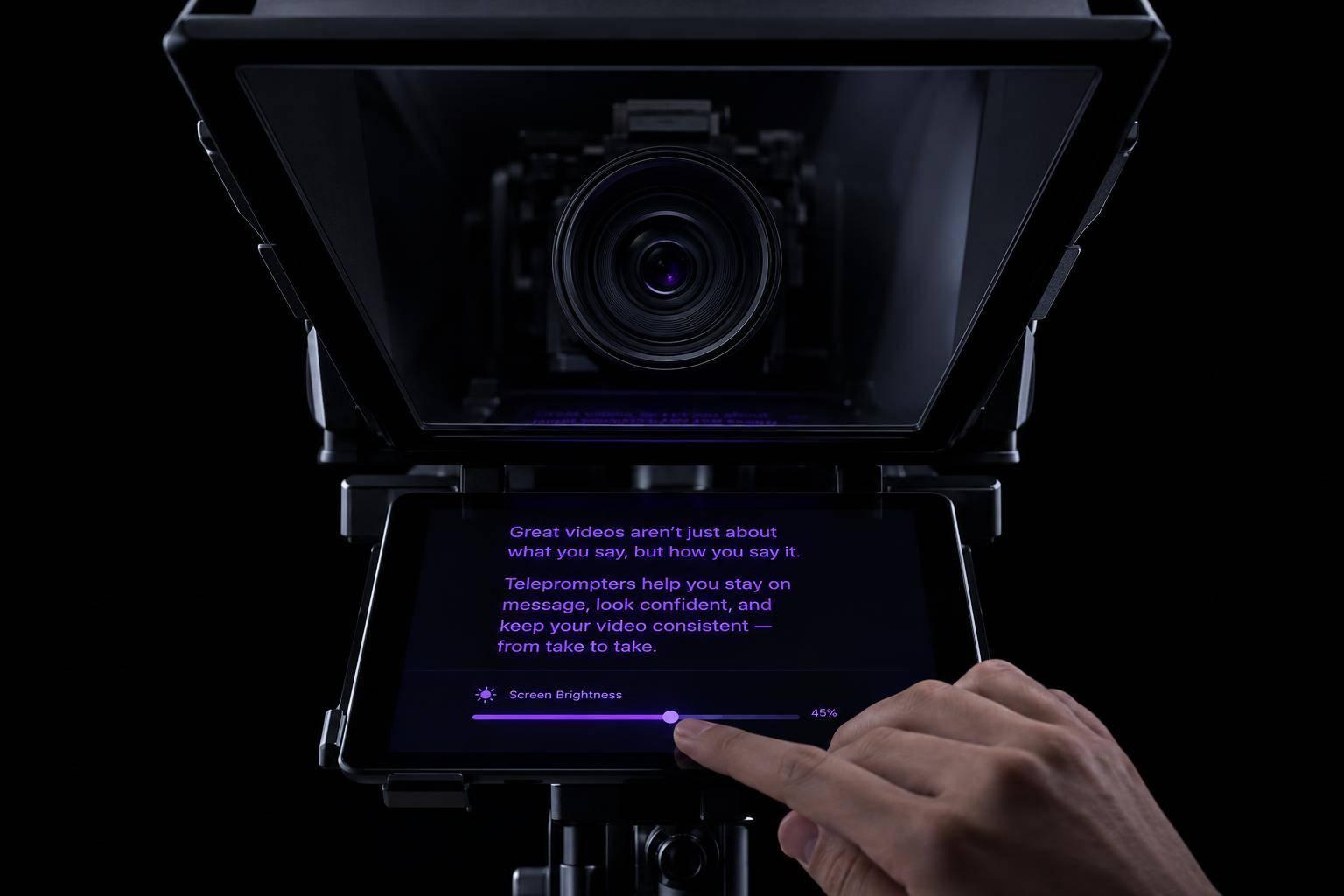
Why Teleprompter Glare Hurts Video Consistency
Teleprompter glare can hide your eyes and change how your face looks between takes. I start by lowering screen brightness - 30–50% is a starting range indoors, not a fixed rule - then check lights and windows one at a time.
My checklist is simple:
- Keep text readable: Use larger type, a dark background, and a comfortable scroll speed.
- Check both kinds of glass: Move lights to clear eyeglass reflections, and block stray light around the teleprompter hood.
- Keep takes matched: Control daylight, lock exposure and white balance after lighting is set, and save the setup details.
Before recording, I clean the optics as directed and shoot a 10–15-second test with natural head movement. <u>The goal: visible eyes, readable text, and steady facial color and brightness.</u>
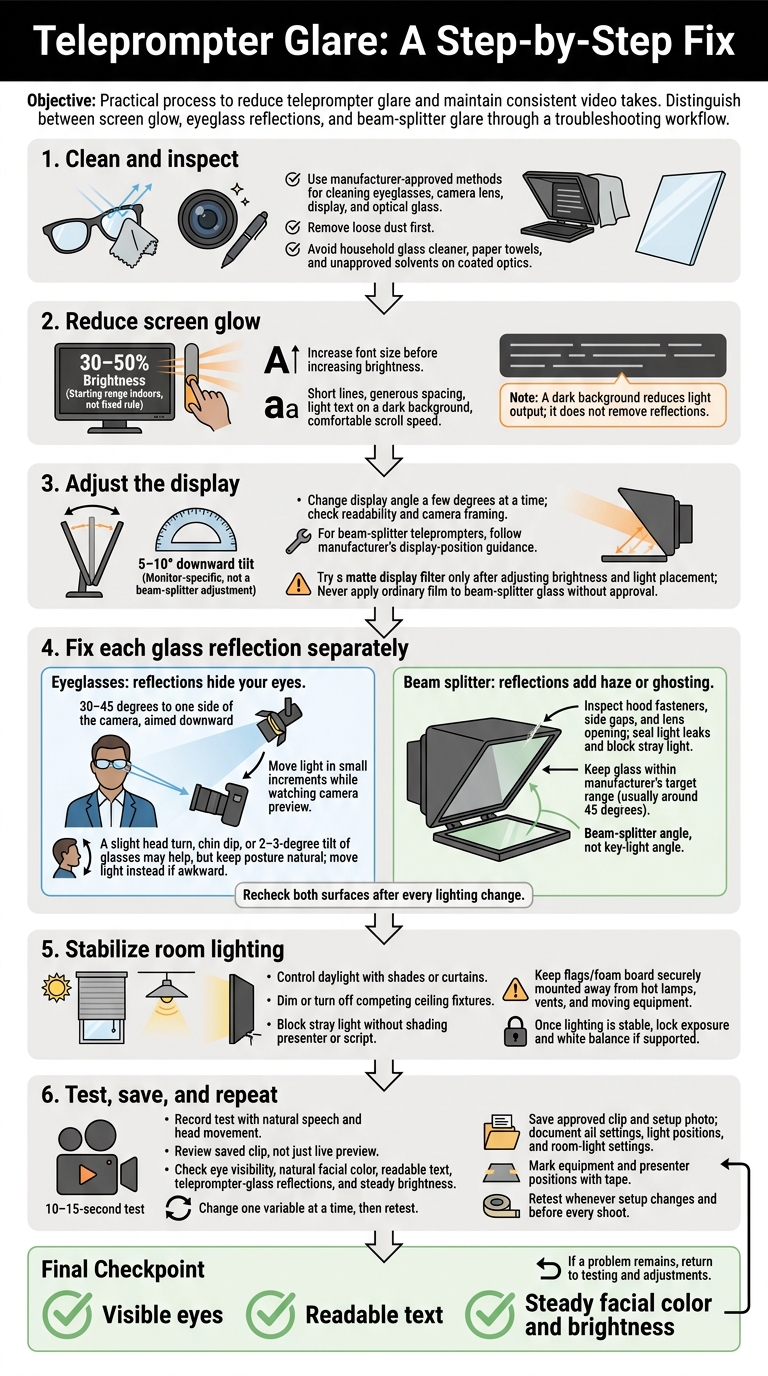
Teleprompter Glare: A Step-by-Step Fix
Reduce Screen Glow and Display Reflections
If the screen is causing the glow, lower its light output before changing the glass or room lighting.
Keep Text Readable at Lower Brightness
Adjust brightness, contrast, and script layout together to keep framing, exposure, and eye contact steady across takes. Start at 30–50% display brightness indoors, then adjust until the text is easy to read.
Increase font size before turning up brightness. Use short lines, generous spacing, and light text on a dark background. A dark background reduces light output, but it won’t remove reflections. Choose settings you can read comfortably at your normal distance.
- Washed-out text: Increase font size and contrast, then tilt or move the display.
- Screen glow on the face: Lower brightness and use a dark background.
- Colored reflections: Move the colored light or switch to a neutral background.
Record a short test after each change. Compare how clearly you can see your eyes, whether your face color looks natural, and whether you’re squinting. If reflections still obscure the text, adjust the display angle next.
Adjust the Screen Angle Before Using a Matte Filter
If lowering brightness doesn’t fix the glare, change the display angle before adding hardware. Move it a few degrees at a time. A 5–10-degree downward tilt may help with some monitor setups, but stop if reading feels awkward or the framing changes. Check both your view and the camera preview. For beam-splitter teleprompters, follow the manufacturer’s display-position guidance.
Try a matte display filter only after adjusting brightness and light placement. It can soften sharp reflections, but it can also lower contrast. Don’t apply ordinary film to beam-splitter glass unless the manufacturer approves it.
Set Up Readable Scripts in Evelize
Once brightness and angle are set, fine-tune your script in Evelize. Increase the font size, use a dark background, and match the scrolling speed to your delivery. These settings can help you read more smoothly at lower brightness.
sbb-itb-4a26d6a
Reduce Glare in Eyeglasses and Teleprompter Glass
Once screen glow is under control, glare usually comes from your eyeglasses or the teleprompter glass. Handle these reflections separately: eyeglass glare hides your eyes, while beam-splitter glare adds haze or ghosting. Moving reflections can also change exposure from frame to frame. Aim for clearly visible eyes and steady facial brightness across takes.
Clean your eyeglasses, camera lens, display, and optical glass using manufacturer-approved methods. Remove loose dust first. Keep household glass cleaner, paper towels, and unapproved solvents away from coated optics. Address the presenter’s reflections before adjusting the teleprompter glass.
Keep Light Reflections Away From the Eyes
Place the key light above eye level and 30–45 degrees to one side of the camera, then aim it downward. Move it in small steps while watching the camera preview. Shifting the reflection out of the camera’s view usually works better than simply dimming the light.
If glare remains, try a slight head turn, a chin dip, or a 2–3-degree tilt of your glasses. Keep your posture natural and your gaze on the lens. Check that both eyes remain visible as your head moves naturally. If you need an awkward pose to avoid glare, move the light instead.
If your eyeglasses are clean and aligned but glare persists, check the beam splitter.
Block Stray Light From Beam-Splitter Glass
Check the hood fasteners, side gaps, and lens opening. Seal light leaks as designed. Use manufacturer-approved black cloth only if it leaves vents and controls clear. Where equipment instructions allow, remove nearby light spill from fixtures, tally lights, and LEDs.
Recheck both surfaces after every lighting change. Fixing eyeglass reflections can worsen beam-splitter glare, so address light spill and hood leaks before changing the glass angle. Keep that angle within the manufacturer’s target range - usually around 45 degrees - to avoid affecting the script reflection or framing.
Keep Room Lighting Consistent and Test the Results
Once screen glow and glass reflections are under control, keep room lighting fixed so glare stays consistent between takes.
Position the Key Light Above and to the Side
Place a diffused key light above and slightly to one side of the presenter. Keep the face brighter than the screen glow, and check reflections on the teleprompter glass as you adjust the light.
Remove competing room light so the key light stays the main source.
Control Daylight, Ceiling Lights, and Light Spill
Close shades or curtains, then dim or turn off competing ceiling fixtures. Changes in daylight can shift exposure, color temperature, and reflections between takes - even when screen brightness and camera settings haven’t changed. If clips need to match, avoid mixing uncontrolled daylight with warm indoor bulbs.
Use a securely mounted black flag or foam board to block stray light without shading the presenter or script. Keep it away from hot lamps, vents, and moving equipment.
Test the setup under the exact lighting you’ll use on camera.
Record a Test and Save Your Settings
Record several lines using the final camera settings and lighting. Watch the saved clip to check eye visibility, facial color, teleprompter-glass reflections, and steady background brightness. Check that the presenter can read the script from their position. Change one variable at a time, then record another test.
Once the lighting is stable, lock exposure and white balance if your camera supports it. This helps reduce brightness and color shifts. Save the approved clip and document the camera settings, screen brightness, script size, scroll speed, light position, height, distance, angle, and room-light settings. Retest whenever any of these changes.
For repeat use, mark equipment and presenter positions with tape. Save a setup photo alongside the approved details.
Conclusion: Check for Glare Before Every Shoot
Run a final glare check before every shoot. Use microfiber cloths to wipe the screen, teleprompter glass, camera lens, and eyeglasses. Smudges make glare worse.
Spot glare? Dim the display first. If that clears it, leave the brightness lower or adjust the screen angle without making the text harder to read. If glare remains, check lamps, ceiling lights, and windows one at a time. Then move the light or block its spill.
Record a 10–15-second test with natural speech and head turns. Check that your eyes are visible, your face is properly lit, and no reflected hotspots appear. Start with your saved setup, then check it with a live test.
FAQs
How can I tell screen glare from light reflections?
Screen glare shows up as bright spots on the glass or washed-out skin when screen light or stray light hits the beam-splitter glass at the wrong angle. Reflections also often show up on eyeglasses and shift as you move.
Lower the screen brightness and record a short test clip. If reflections remain, move lights so they don’t shine directly onto the glass. Darken any bright backgrounds behind the camera, too.
When would a matte filter make glare worse?
The provided articles don’t mention any cases where a matte filter makes glare worse. Instead, they recommend matte finishes or filters to reduce reflections.
They also suggest adjusting light placement and the angle of your teleprompter glass, plus using barn doors or flags to block stray light.
Why does glare return when I move my head?
Glare comes back because moving your head changes the angle of reflections. That can bring reflections from the teleprompter’s beam-splitter glass, overhead lights, or a bright wall behind the camera into the camera’s view.
Even a slight movement can cause uneven bright spots on your glasses, forehead, or cheeks. This is more likely when the glass and camera lens aren’t lined up properly or the lighting angle isn’t fixed.
Related Posts
Ready to Elevate Your Content?
Try Evelize for free and experience the easiest way to create, edit, and share professional videos. Script writing, teleprompter, and powerful video tools - all in one app!

