
Common Teleprompter Mistakes and Fixes
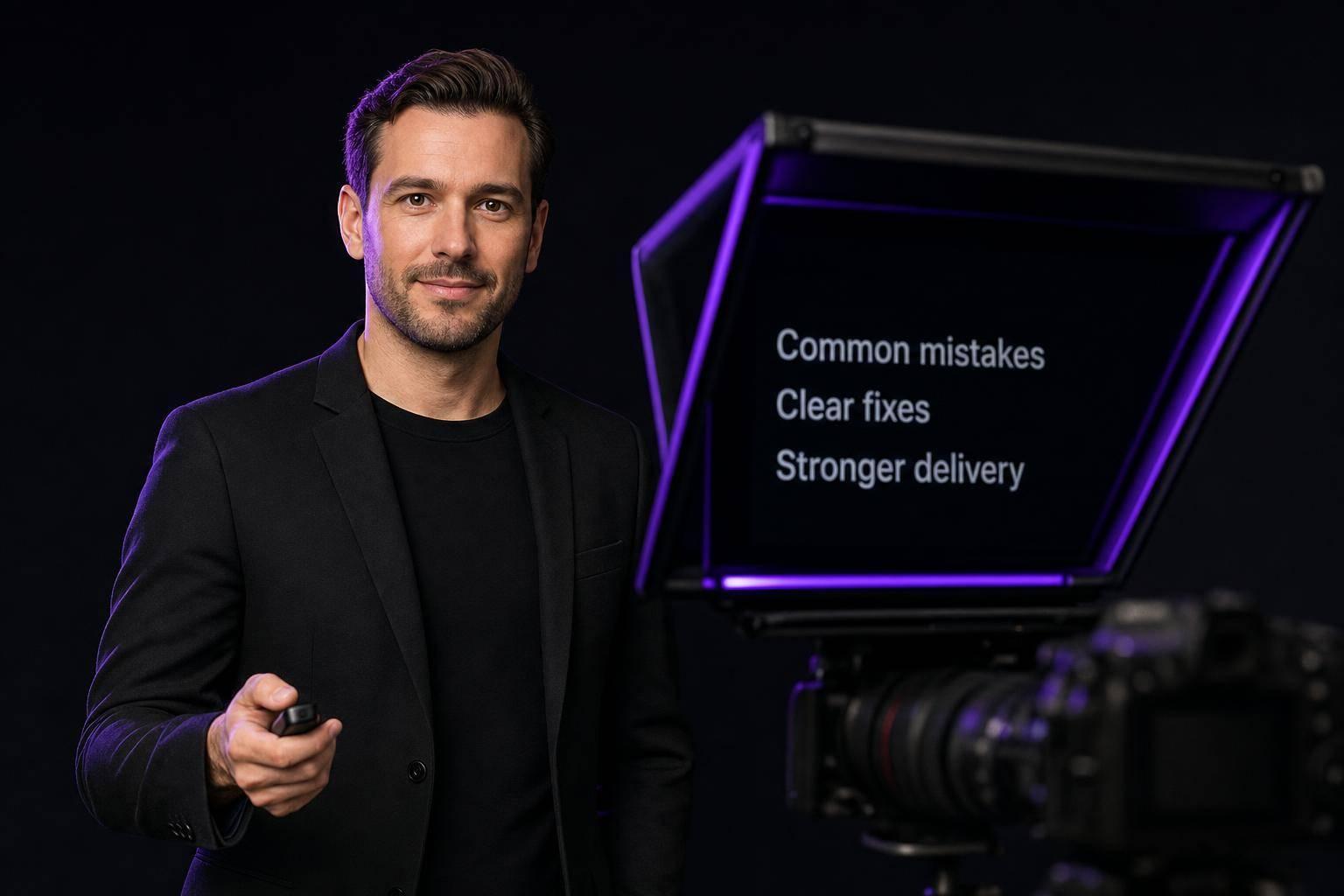
Common Teleprompter Mistakes and Fixes
Most teleprompter problems come from five fixable issues: script format, scroll speed, eye line, delivery, and setup. If I keep my script short, set the speed to fit my voice, read in phrases, mark pauses, and do one test run, I can cut a lot of retakes before recording even starts.
Here’s the short version:
- Hard-to-read scripts make me sound stiff and push me to read word by word
- Wrong scroll speed makes me rush or pause in odd spots
- Weak eye contact usually comes from long lines, small text, or poor lens alignment
- Flat delivery often starts with no vocal practice
- Skipping setup checks leads to problems that are easy to catch in a 2-minute test clip
A few numbers stand out:
- For many videos, scroll speed often works best around 125 to 150 words per minute
- For a teleprompter about 2 to 3 feet away, text should often be at least 48px
- A 3- to 5-second blank lead-in can help me settle before the script starts
- One source in the article says steady eye contact can hold viewers 27% longer
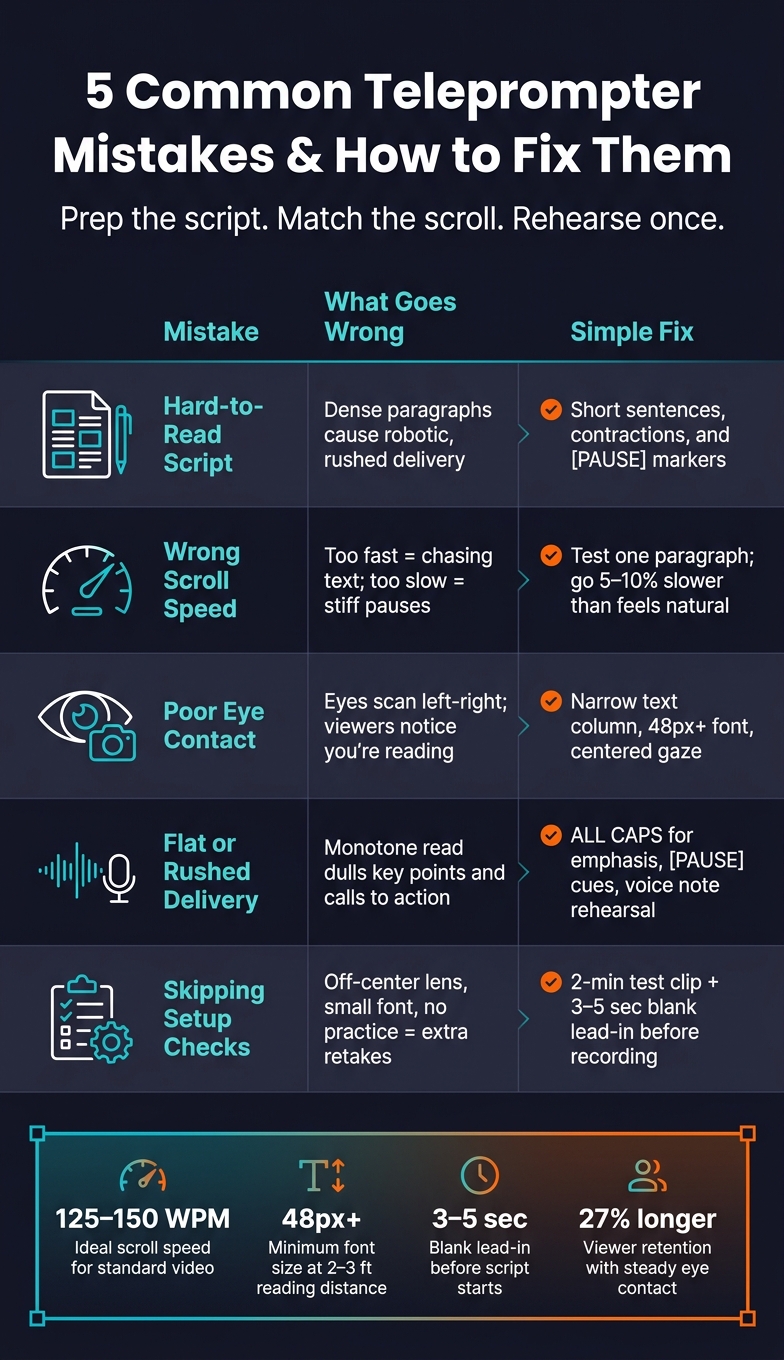
5 Common Teleprompter Mistakes & How to Fix Them
Read Better From A Teleprompter Immediately!
sbb-itb-4a26d6a
Quick Comparison
| Mistake | What goes wrong | Simple fix |
|---|---|---|
| Dense script | I lose my place and sound robotic | Use short lines, short sentences, and pause cues |
| Bad speed | I rush or drag | Test one paragraph and adjust before take one |
| Poor eye contact | My eyes move too much on camera | Use a narrow text column and larger font |
| Flat tone | The read sounds dull or forced | Rehearse with emphasis and pauses |
| No setup check | I miss small issues that ruin takes | Do one practice read and record a short test clip |
Bottom line: if I prep the script for speech, slow the scroll a bit, and rehearse once, teleprompter delivery usually gets much smoother. The rest of the article explains how to fix each mistake step by step.
Mistake 1: Using Long, Hard-to-Read Scripts
A script can look fine on the page and still fall apart the second you try to read it on camera.
That usually happens when the script is packed with full paragraphs, long sentences, and stiff wording. It may read well like a document, but spoken delivery is a different game.
Why Dense Formatting Causes Problems
Dense paragraphs and long sentences are harder to track while scrolling, which makes it easier to lose your place and run out of natural breath points. When there are no pause points, you end up chasing the scroll - and the result sounds rushed or robotic. Formal wording can sound stiff on camera, so use simple, conversational language.
Put plainly: if your script looks like something you'd submit in a class, it's probably too dense for a teleprompter. On camera, your eyes need clean breaks. Your voice needs room to breathe.
Fix: Format Scripts for Spoken Delivery
Write for speech, not the page. Use contractions, swap formal words for simple ones, and keep each sentence focused on one idea. If a sentence runs past 20 words, split it. Add explicit pause markers - either ... or [PAUSE] - wherever you'd naturally take a breath. Use uppercase for words that need emphasis. Read the script aloud once and rewrite any line that trips you up.
A good rule of thumb: if you wouldn't say it that way in a normal conversation, don't put it in the script.
| Issue | Poor teleprompter formatting | Readable teleprompter formatting |
|---|---|---|
| Paragraph length | Long blocks of text | Short sections with clear breaks |
| Sentence structure | Long, complex sentences | Short, direct sentences |
| Pauses | No pause markers | Natural pauses marked with ... or [PAUSE] |
| Word choice | Formal or dense wording | Simple, spoken language |
| Delivery | Hard to follow while reading | Easier to deliver naturally |
Once the script reads cleanly, the next step is getting the scroll speed to match how you speak.
Mistake 2: Setting the Wrong Scroll Speed
Once your script is clean, the next thing to dial in is scroll speed. It needs to match the way you speak. If it moves too fast, you end up chasing the text. If it moves too slowly, your delivery starts to drag.
How Speed Mismatch Affects Delivery
When the script gets ahead of you, you tend to rush. That can throw off emphasis, breathing, and pacing. On camera, it can also make you look tense.
A slow scroll causes a different kind of trouble. Your delivery can feel stiff and weighed down, and pauses start showing up in odd spots. The sweet spot is when the text stays just a little ahead of your reading pace.
Fix: Test and Adjust Before the First Take
Use the chart below to line up speed with the kind of video you're recording.
| Content Type | Recommended Speed | Goal |
|---|---|---|
| Emotional / Serious | 100–125 WPM | Clarity and emphasis |
| Professional / Standard | 125–150 WPM | Natural conversational flow |
| Energetic / Short-form | 150–170 WPM | High energy and engagement |
| Tutorials / Teaching | 110–130 WPM | Retention and understanding |
A simple way to set this up: read one paragraph out loud, time it, and match the scroll speed to that pace. Then go a bit slower than feels natural in rehearsal, around 5% to 10% slower. Once the camera turns on, nerves often make people talk faster than they expect.
Evelize gives you adjustable scrolling speed settings, so you can tune the pace before you hit record.
Mistake 3: Reading Too Rigidly and Losing Eye Contact
Once your scroll speed feels right, the next thing to watch is your eye movement.
Why Overreading Looks Unnatural on Camera
When you read too tightly from the screen, it shows. Wide lines and word-by-word reading pull your eyes away from the lens line and make your delivery feel staged. Reading across long lines of text makes your eyes scan from left to right in a way viewers can spot right away, which tells them you're reading instead of talking to them.
And that changes what people pay attention to. Instead of hearing your point, they start noticing your eyes moving across the script. You can also lose the small pauses that make speech sound human, which can make the delivery feel robotic.
Fix: Read in Phrases and Keep Gaze Movement Small
The fix is simple: read by phrase, not by word. That gives your delivery a more natural rhythm.
It also helps to use a narrow, centered text column so your eyes don't travel as much from left to right. Pair that with a larger font size - at least 48px when reading from 2 to 3 feet away - so there are fewer words on each line and your focus stays near the center. That keeps your eyes closer to the lens line. In Evelize, adjust the font size before you start recording.
You can also add script cues such as [PAUSE], [SMILE], and [LOOK] to break the reading pattern and prompt more natural delivery. Those cues help trigger pauses, facial expression, and brief eye resets without making the read feel stiff.
Once your eye line stays steady, the next thing to work on is delivery style.
Mistake 4: Sounding Flat or Rushed
Even with a clean script and the right scroll speed, your delivery can still fall flat if your voice stays stuck in reading mode. Once the script is easy to follow and the pacing feels right, the next job is making the delivery sound like an actual person speaking.
How Flat Delivery Hurts the Final Video
If every word lands with the same weight and the same pace, people stop paying attention. A monotone read can weaken calls to action, dull key points, and make educational or promotional content feel lifeless. In many cases, the problem starts when you treat the script like text on a page. When that happens, the natural rhythm of speech starts to vanish.
The answer isn't more speed control. It's better vocal shape.
Fix: Rehearse for Emphasis, Pauses, and Tone
A simple fix is to mark up your script before you record. Use ALL CAPS for words that need emphasis, and add [PAUSE] anywhere you want to breathe. You can also mark commas for short pauses and periods for full stops. That small step helps you avoid the rushed delivery that makes scripts sound robotic.
Before your first full take, try the Voice Note Method. Read the script out loud like you're sending a casual voice note to a friend. It pushes you toward a more natural tone and helps strip away the stiffness that comes from reading in a formal way. The result is a delivery that feels conversational instead of rushed and robotic.
Mistake 5: Skipping Setup Checks and Rehearsal
A smooth read can still fall apart if your lens, font, or scroll settings are off. Most teleprompter issues start before you record, when the setup gets rushed. A font that's too small, a camera lens that's slightly off-center, or skipping one practice read can turn into extra retakes later.
What to Check Before Recording
Start with lens alignment. The camera lens should sit directly behind the center of the beam splitter glass. If it's even 1–2 inches off-center, it can look like you're speaking past the viewer. And that matters: creators who keep steady eye contact with the lens hold viewers an average of 27% longer than those with frequent side glances.
Your text setup matters too. Match the font size to your reading distance, use bold sans-serif type, and stick with strong white-on-black contrast so the script is easy to read at a glance.
One small step that helps more than people expect: add a 3- to 5-second blank lead-in at the start of your script. That gives you a beat to settle in before the words start moving.
Fix: Build a Simple Pre-Recording Routine
After the hardware checks are done, rehearse once before your first take. Run a quick practice read to catch awkward lines, check your pace, and make sure your posture looks right on camera.
Then record a 2-minute test clip and watch it back. Focus on a few things:
- Is your eye contact lined up with the lens?
- Are you squinting to read?
- Does the delivery sound natural?
Evelize makes this routine easier to repeat. You can organize and search your scripts in the app, then adjust font size, scroll speed, and background color before each session. It also helps to write down your usual lens position, font size, and scroll speed, so the next shoot starts fast.
Conclusion: How to Improve Teleprompter Delivery
Most teleprompter issues come back to five habits you can fix. And all five fixes lead to the same simple rule: prep the script, match the scroll to your pace, and rehearse before you hit record.
Start with the script. Keep sentences short, use contractions, and read everything out loud before you even open the teleprompter. If a line feels awkward or you trip over it, change it. Simple as that.
Next, set your scroll speed to match your speaking voice. It should be a little slower than your normal pace, because nerves often make people speak faster once the camera is on.
Then keep your eyes centered on the lens. Add cues like [PAUSE] and ALL CAPS right in the script so you know where to slow down or lean in. With those cues in place, do one full practice read before recording.
That last step does a lot of heavy lifting. One rehearsal before your first take catches most stumbles before they end up in your footage. And if you record often, Evelize makes that routine easy to repeat from one shoot to the next.
FAQs
How do I know if my script is too dense for a teleprompter?
If your script is packed with long paragraphs, dense phrasing, or tangled sentences, it can be hard to read out loud without tripping over the words. That often leads to a stiff, robotic delivery.
Keep your sentences short. Add clear line breaks. Build in visual pauses so your eyes can move through the script without getting stuck.
Then do the simplest test: read it aloud.
If the wording doesn’t flow in a natural way, or you keep needing to stop and reset, the script probably needs to be simplified.
What should I adjust first if my delivery still feels unnatural?
Start with a practice run. That gives you a chance to catch awkward phrasing, timing problems, and pace issues before you record, so your delivery sounds smoother and more natural.
Then adjust your teleprompter settings, especially font size and scroll speed, so they match the way you speak.
How can I improve eye contact without memorizing my script?
Place your teleprompter as close to the camera lens as possible. That cuts down on eye movement and helps you look like you're making direct eye contact.
Before you hit record, read your script out loud a few times. Once the phrasing feels familiar, your delivery usually sounds smoother and less stiff.
While recording, read in short chunks and keep your eyes on the lens, not the moving text. It also helps to use a narrow text column, since that can limit side-to-side eye movement.
Related Posts
Ready to Elevate Your Content?
Try Evelize for free and experience the easiest way to create, edit, and share professional videos. Script writing, teleprompter, and powerful video tools - all in one app!


