
5 Tools for Stabilizing Smartphone Videos
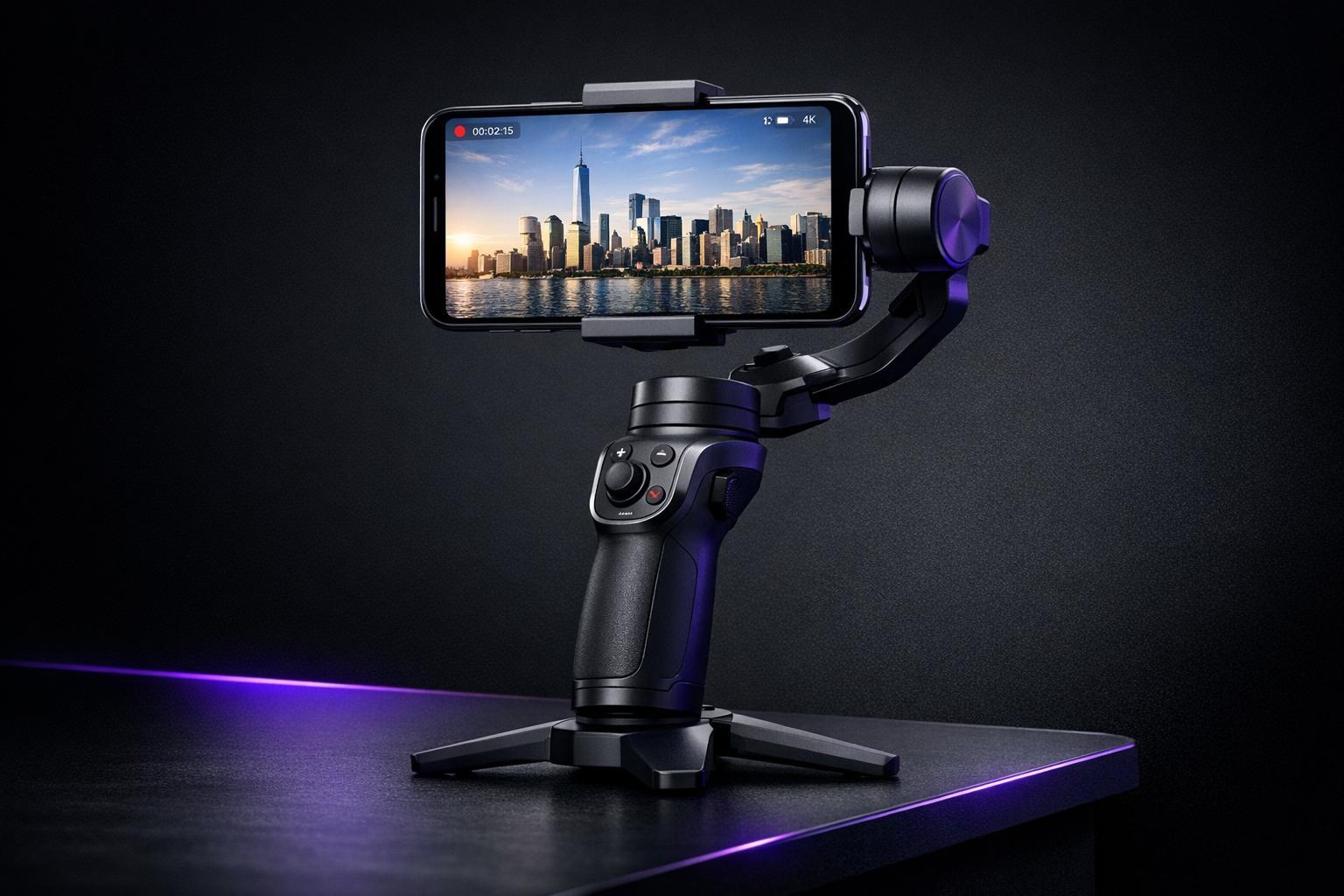
5 Tools for Stabilizing Smartphone Videos
Shaky videos can ruin your content. Smooth footage keeps viewers engaged - 87% of people are more likely to watch stable videos. Whether you're creating vlogs, tutorials, or social media clips, stabilization tools can make your videos look polished. Here are five tools to help:
- DJI Osmo Mobile 7P: A $149 motorized gimbal with advanced subject tracking and 10-hour battery life. Works with iOS and Android.
- Insta360 Flow 2 Pro: A $159.99 gimbal with AI tracking and built-in selfie stick. Compatible with iOS and Android.
- LumaFusion: A $29 mobile editing app with post-production stabilization for iOS and Android.
- Topaz Video AI: Desktop software starting at $299, offering AI-driven stabilization for pre-recorded footage.
- Emulsio: An Apple-only app with electronic stabilization, available via subscription or a one-time Pro Pack purchase.
Each tool suits different needs, from real-time stabilization during filming to post-production fixes. Choose one based on your budget, device, and workflow.
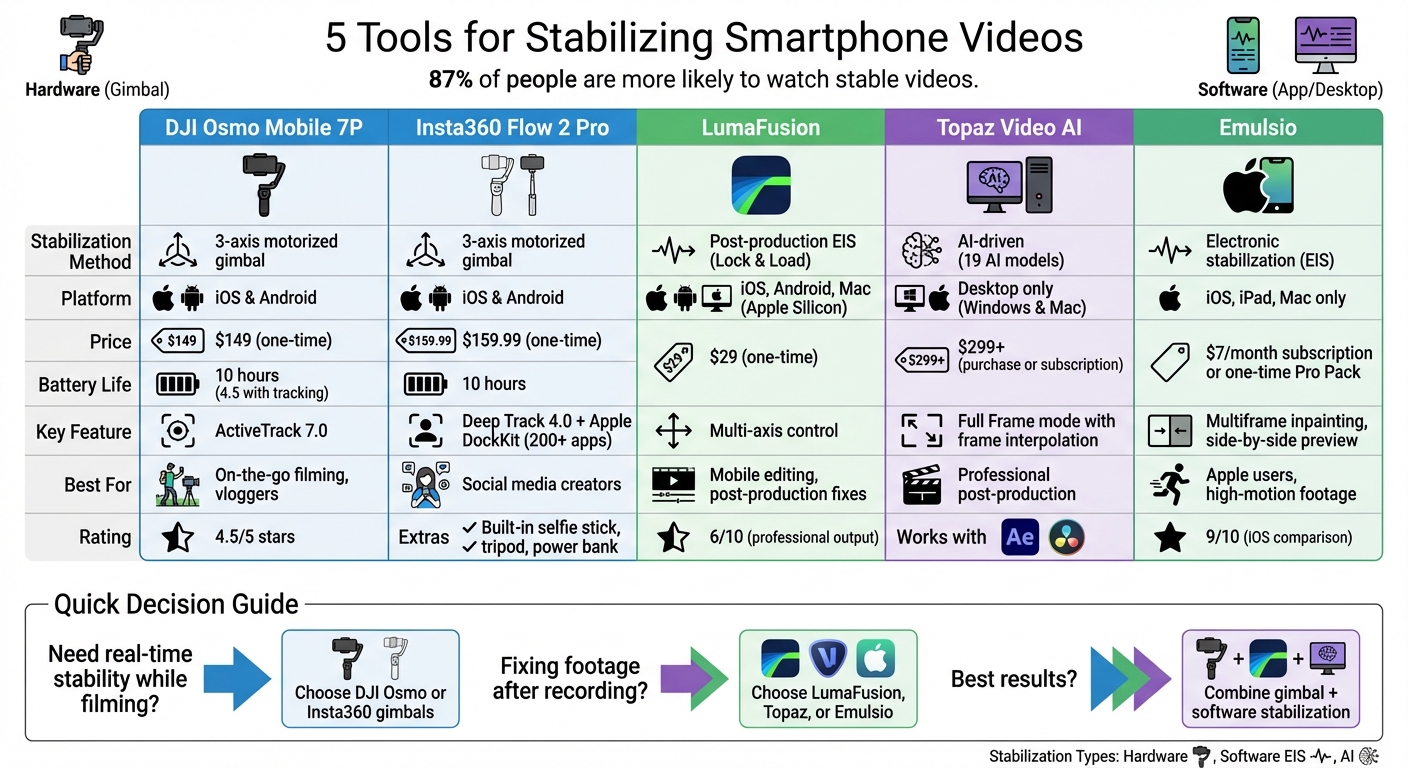
Smartphone Video Stabilization Tools Comparison: Features, Pricing & Best Uses
Stabilize Your iPhone and Android Video Footage
Quick Comparison
| Tool | Stabilization Method | Platform Support | Pricing | Best For |
|---|---|---|---|---|
| DJI Osmo Mobile 7P | 3-axis motorized gimbal | iOS, Android | $149 (one-time) | On-the-go filming |
| Insta360 Flow 2 Pro | 3-axis motorized gimbal | iOS, Android | $159.99 (one-time) | Social media creators |
| LumaFusion | Post-production EIS | iOS, Android | $29 (one-time) | Mobile editing |
| Topaz Video AI | AI-driven stabilization | Desktop (Windows, Mac) | $299+ (software) | Professional post-production |
| Emulsio | Electronic stabilization | iOS, iPad, Mac | Subscription/$7+ | Apple users |
Use a gimbal for real-time stability or software for post-production tweaks. Combine both for the best results.
1. DJI Osmo Mobile 7P
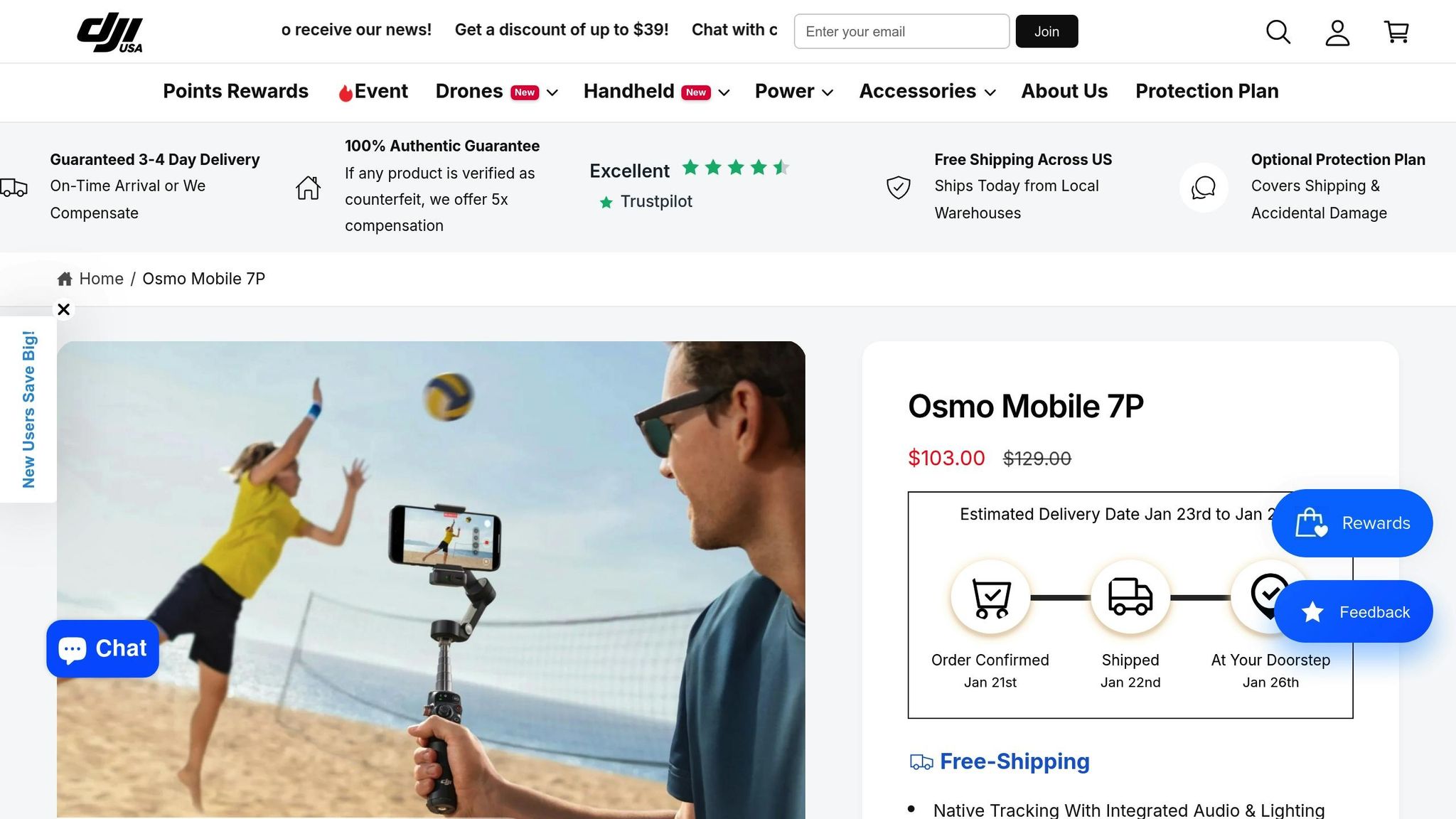
The DJI Osmo Mobile 7P is a three-axis motorized gimbal designed to eliminate shaky handheld footage using DJI's seventh-generation stabilization technology. Unlike the optical image stabilization (OIS) built into smartphones, this gimbal smooths out the vertical motion caused by walking or jogging, making it a game-changer for capturing steady video in motion.
Stabilization Features
One of its standout features is ActiveTrack 7.0, which automatically locks onto subjects, keeps them in focus, and quickly reacquires them if they move out of the frame. Another highlight is the Multifunction Module - a magnetic accessory that allows native subject tracking within third-party apps like TikTok or Instagram, eliminating the need for the DJI Mimo app.
Compatibility with Devices
The Osmo Mobile 7P is compatible with iOS 12+ and Android 8+ devices through the DJI Mimo app. It supports smartphones weighing between 170 and 300 g. Apple users get additional perks, such as remote control through an Apple Watch (Series 7 or later) and automatic launching of the DJI Mimo app when mounting an iPhone.
Pricing and Battery Life
The Osmo Mobile 7P is priced at $149.00 (with occasional discounts available on the DJI Store). The package includes the Multifunction Module, an integrated extension rod, and a built-in tripod. Its battery lasts up to 10 hours under normal use, though this drops to 4.5 hours when using active tracking.
Who Is It For?
This gimbal is perfect for solo creators, vloggers, and anyone shooting tutorials or product demos on the go. Its ability to track subjects directly within social media apps makes it particularly appealing to those who prefer shooting natively. PCMag gave it a glowing 4.5/5 rating and an Editors' Choice award, praising its "foolproof operation" and impressive subject tracking.
2. Insta360 Flow 2 Pro
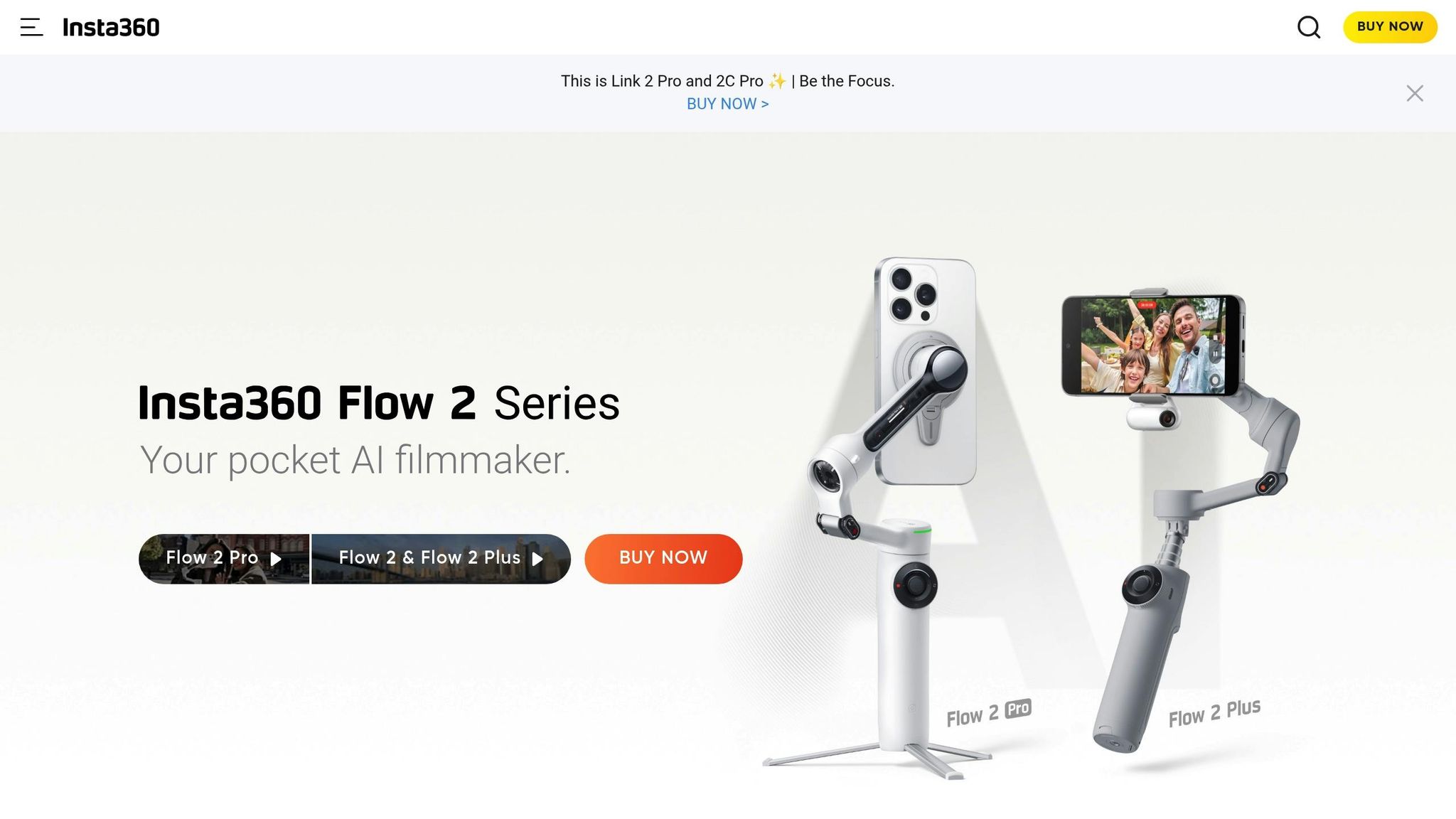
The Insta360 Flow 2 Pro takes smartphone videography to the next level with its professional-grade 3-axis stabilization and advanced AI tracking. By countering shakes in real time, it eliminates the frame cropping or distortion often caused by digital stabilization on smartphones. Let’s dive into its standout features.
Stabilization Method
This gimbal doesn’t just keep your footage steady - it uses Deep Track 4.0 to lock onto subjects, even if they’re momentarily blocked or change appearance. This ensures smooth, consistent framing during action-packed scenes. Plus, it supports Apple DockKit, enabling native subject tracking across iOS cameras and over 200 apps like TikTok, Instagram, and FaceTime. The gimbal also provides uninterrupted 360° pan tracking, making it a versatile tool for dynamic shooting.
"For our first smartphone gimbal, we wanted a device that goes beyond the basic functionality of a gimbal and offers a whole new way to film moments on your smartphone. Powered by our AI technology... Flow tracks, stabilizes and edits content for you." - JK Liu, Founder, Insta360
Platform Compatibility
The Flow 2 Pro is designed to work seamlessly with both iOS and Android devices. iPhone users (iPhone 12 or later with iOS 18) can access DockKit features, while Android users can connect via NFC one-tap pairing through the Insta360 app. However, Android users may need an additional AI Tracker accessory for native tracking. The gimbal supports smartphones weighing between 4.6 and 10.6 oz (130–300 g), making it compatible with a wide range of devices.
Price Point and Best Use Case
Priced at approximately $159.99, the Flow 2 Pro offers a lot more than just stabilization. It includes a built-in selfie stick (extending up to 8.5 inches), a tripod, a cold shoe mount, and even a power bank. With a battery life of 10 hours and the ability to charge up to 80% in just 55 minutes, it’s tailored for vloggers and solo creators who want professional-quality stabilization without the hassle of carrying extra gear.
3. LumaFusion
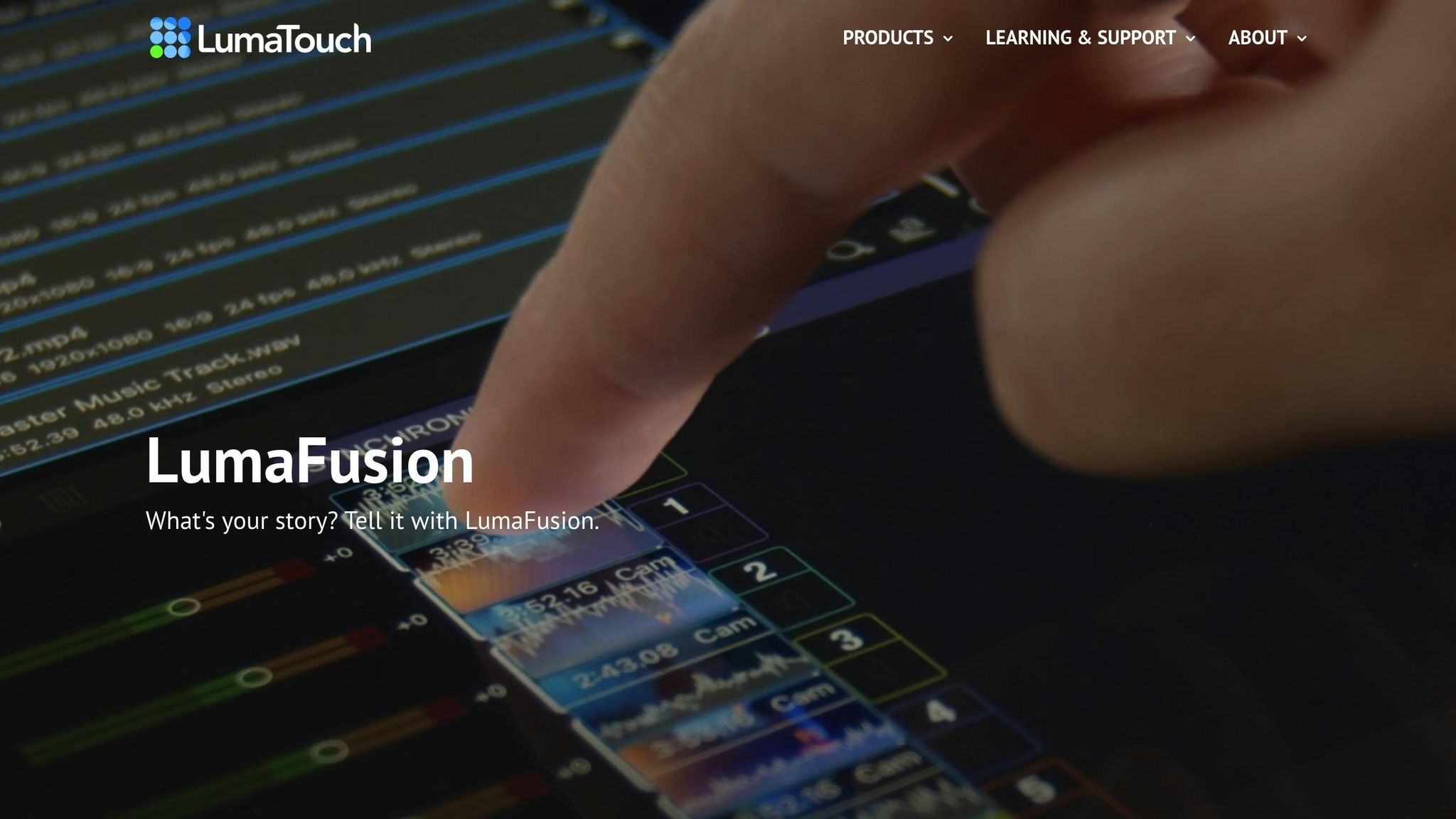
LumaFusion delivers impressive stabilization through its Lock & Load engine. Unlike gimbals that stabilize footage as you shoot, this tool works in post-production, smoothing out your video after it's been recorded. Using advanced tracking, it monitors multiple points in your frame and applies precise counter-movements - like rotation, horizontal and vertical adjustments, and scaling - to eliminate camera shake.
Stabilization Method
The Lock & Load stabilizer uses sophisticated algorithms and Automatic Smart Scaling to tackle rolling shutter issues often seen in smartphone footage. It also reduces distracting black edges. You can fine-tune the stabilization strength across horizontal, vertical, rotation, and zoom axes to suit your needs.
"Lock & Load has been the fastest and most powerful stabilizer for Final Cut Pro users for many years... now available in the palm of your hand for iPads and iPhones." - CoreMelt
This level of control ensures smooth, professional-looking results, whether you're editing on a phone, tablet, or computer.
Platform Compatibility
LumaFusion is available on iOS (iPhone and iPad), Android, and Apple Silicon Macs (M1/M2/M3). The app also supports vertical video formats, making it a go-to choice for stabilizing content shot in 9:16 aspect ratios - perfect for social media.
Price Point
LumaFusion is a one-time purchase of $29.00. The Lock & Load stabilization feature is included at no extra cost for users of LumaFusion 3.0 and above.
Best Use Case
This app shines when it comes to refining shaky footage after filming, making it an excellent choice for mobile journalists, documentary creators, and anyone needing professional control on the go. Its post-production approach offers flexibility compared to hardware stabilizers. However, it works best with clips from relatively stable positions, as extreme movements can limit its effectiveness.
CyberLink's 2026 review gave LumaFusion a 6/10 rating, highlighting its fast stabilization speeds and high-quality output with minimal distortion. The review also noted its steeper learning curve compared to more casual editing apps. For creators willing to invest some time, LumaFusion delivers professional-grade results.
sbb-itb-4a26d6a
4. Topaz Video AI
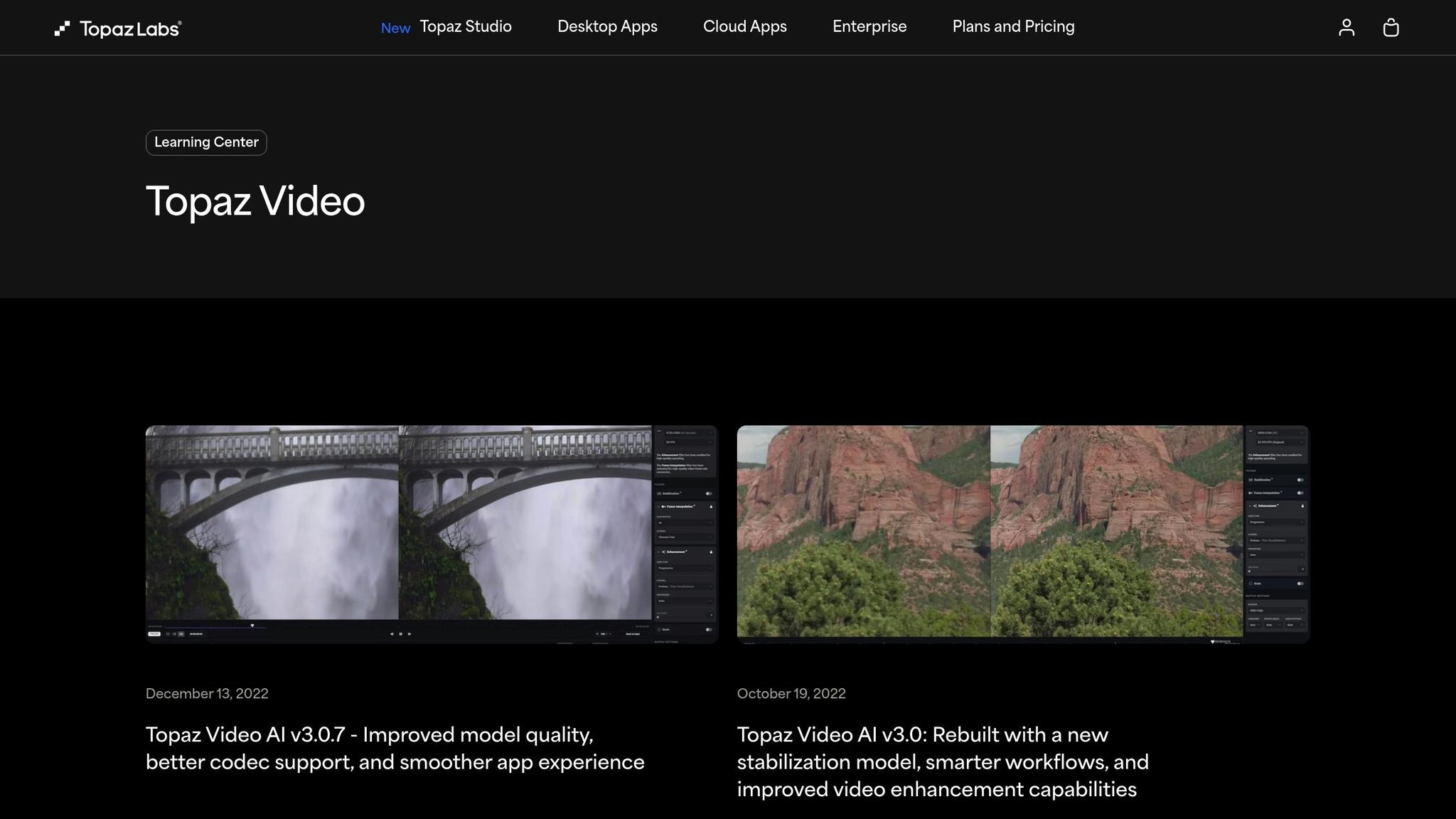
Topaz Video AI is designed to help creators turn shaky footage into smooth, polished content through advanced post-production techniques. Unlike traditional stabilization tools that track individual points, this software uses artificial intelligence to analyze the entire frame and estimate camera movement. This method is especially effective for handling tricky shots with motion blur or low contrast.
Stabilization Method
Topaz Video AI uses 19 AI models and offers two stabilization modes: Full Frame and Auto-Crop. Full Frame mode leverages deep learning and frame interpolation to fill in blank edges, making it perfect for preserving your original framing and resolution. Auto-Crop, on the other hand, trims the edges to deliver a sharper final result.
Additional features include Rolling Shutter Correction and a "Reduce Jittery Motions" toggle powered by the Chronos Fast AI model, which addresses complex disturbances. You can also stack other enhancements, such as 4K upscaling and denoising, for even better results.
As Topaz Labs explains:
"The new stabilization AI model considers the entire frame instead of an individual point. We trained the model with challenging video samples to perform better than the traditional feature-matching algorithm."
Platform Compatibility
Topaz Video AI is available as a desktop-only application for both Windows and macOS. It functions as a standalone program or as a plugin for professional editing software like Adobe After Effects and DaVinci Resolve. While Topaz Labs offers other mobile apps, Video AI requires the processing power of a desktop to handle its intensive AI calculations. It supports both local rendering and cloud rendering through Cloud Credits.
Price Point
Topaz Video AI offers several pricing options:
- A one-time purchase for $299.00, which includes one year of updates.
- A Personal Plan at $25/month (billed annually at $299) or $59/month for a month-to-month subscription.
- A Pro Subscription at $58/month (billed annually at $699).
- A Topaz Studio Bundle priced at $33/month (billed annually at $399).
Best Use Case
This tool shines when it comes to salvaging pre-recorded footage, making it a go-to for professional video editors and content creators working on shaky smartphone videos or other challenging clips. Many Trustpilot reviewers have praised it as "indispensable" for professional workflows, with one user stating it "makes unusable shots usable."
However, it's important to note that Topaz Video AI is strictly for post-production and desktop use. It’s not suitable for real-time stabilization while filming or for creators who rely solely on mobile devices. Instead, it serves as a powerful complement to hardware stabilizers, offering editors a robust solution for refining difficult footage.
5. Emulsio
Emulsio is an Apple-only app that uses electronic image stabilization (EIS) to smooth out horizontal, vertical, and rotational movements in your videos. It also tackles the "jello effect" caused by rolling shutter issues, making it a powerful tool for video stabilization.
Stabilization Method
The app employs multiframe inpainting to eliminate black borders without excessive cropping. You can fine-tune the stabilization strength with a slider to avoid that unnatural "floating" look, and a side-by-side comparison feature allows you to preview changes before exporting. Professional reviewers gave Emulsio a 9/10 rating, calling it the "Best Choice for Side-By-Side Comparison on iOS".
Platform Compatibility
Emulsio is available for iPhone, iPad, and Mac, with special optimizations for Apple Silicon devices. It processes videos directly on your device using Core ML and the Apple Neural Engine, ensuring your edits remain private. The app also integrates seamlessly with the iOS Photos app for quick editing. However, it’s exclusively for Apple users - Android devices are not supported.
Price Point
You can try Emulsio for free, but exports will be watermarked, and processing is limited to 30 seconds. To unlock full functionality, you can purchase the Pro Pack with a one-time payment or subscribe to the Pro Plan for about $7 per month. The app is also included in Setapp, offering flexible pricing options for different needs.
Best Use Case
Emulsio shines in stabilizing high-motion footage, whether it’s from a smartphone, drone, or action camera. It’s especially effective for clips like handheld walking shots or GoPro recordings. According to Josh S., it’s his "gold standard stabilization app". However, some users have noted occasional jitter in extreme lighting conditions, such as flashing concert lights.
Tool Comparison Table
Here’s a quick breakdown of the stabilization methods, platform compatibility, pricing, and ideal use cases for some popular tools. Hardware gimbals like the DJI Osmo Mobile 7P and Insta360 Flow 2 Pro rely on 3-axis motors to counteract motion, delivering smooth footage. On the other hand, software solutions such as LumaFusion and Emulsio use electronic image stabilization (EIS), which digitally analyzes and corrects footage - though this often involves some cropping. Meanwhile, AI-based tools like Topaz Video AI reconstruct frames using artificial intelligence to minimize distortion.
Platform support varies significantly. The DJI Osmo Mobile 7P and Insta360 Flow 2 Pro are compatible with both iOS and Android via their companion apps. LumaFusion and Emulsio cater to mobile editing, with Emulsio being exclusive to Apple devices, including iPhones, iPads, and Macs with Apple Silicon. In contrast, Topaz Video AI is designed specifically for desktop systems.
Pricing structures depend on whether you're purchasing hardware or software. Gimbals like the DJI and Insta360 models involve a one-time hardware investment. LumaFusion offers a straightforward one-time purchase for its software, while Emulsio operates on a subscription basis. Topaz Video AI provides both purchase and subscription options. The table below summarizes each tool’s key features:
| Tool | Stabilization Method | Platform Support | Pricing Model | Best For |
|---|---|---|---|---|
| DJI Osmo Mobile 7P | 3-axis motorized gimbal | iOS, Android | One-time hardware purchase | Real-time stabilization during active filming |
| Insta360 Flow 2 Pro | 3-axis motorized gimbal | iOS, Android | One-time hardware purchase | Social media creators; integrates with 200+ apps via Apple DockKit |
| LumaFusion | Electronic Image Stabilization (EIS) | iOS, Android | One-time software purchase | Professional multi-track editing on mobile |
| Topaz Video AI | AI-driven stabilization | Desktop only | Software purchase/subscription | Post-production corrections with minimal distortion |
| Emulsio | Electronic Image Stabilization (EIS) | iOS, iPad, Mac | Subscription-based | Perfect for Apple users and creators |
For the best results, technique is just as important as the tools you use. If you're relying on software stabilizers, shoot in 4K resolution to allow for cropping without dropping below 1080p. For hardware gimbals, remember to keep your elbows close to your body and move slowly for smoother footage, even with the gimbal doing the heavy lifting.
Conclusion
Choosing the right stabilization tool comes down to your budget, shooting style, and workflow needs. Tools like the DJI Osmo Mobile 7P, Insta360 Flow 2 Pro, LumaFusion, Topaz Video AI, and Emulsio cater to different filming scenarios, each offering something unique.
If you're filming dynamic content like vlogs or action-packed scenes, a 3-axis gimbal such as the DJI Osmo Mobile 7P or Insta360 Flow 2 Pro delivers smooth, real-time stabilization for on-the-go shooting. For static setups like interviews or time-lapse shots, more affordable stabilization accessories can provide reliable support. Pairing these hardware solutions with advanced software stabilizers creates a powerful toolkit for a variety of filming needs.
On the software side, stabilization tools refine your footage, ensuring a polished, professional look. Mobile apps like LumaFusion and Emulsio offer high-quality stabilization, while desktop software like Topaz Video AI uses artificial intelligence to salvage shaky clips. However, keep in mind that post-production tools work best on mildly shaky footage - extreme instability can lead to distortion or the dreaded "jello" effect. Shooting in 4K can also help, as it allows for more precise digital stabilization.
Your choice of platform matters, too. iOS users benefit from features like Apple DockKit compatibility in the Insta360 Flow 2 Pro, which integrates seamlessly with over 200 apps. Android users can access similar gimbals but should double-check app compatibility. For Apple-exclusive workflows, Emulsio offers smooth integration across iPhone, iPad, and Mac.
Basic filming techniques still play a crucial role in stabilization:
- Hold your phone with both hands and keep your elbows tucked in
- Walk heel-to-toe to reduce shocks while moving
- Skip digital zoom - get closer to your subject physically
- Shoot at higher frame rates, like 60 fps, to minimize the appearance of minor shakes
The best results often come from combining methods. Use a gimbal for action shots, rely on your phone's built-in stabilization for casual filming, and apply software corrections to fine-tune your footage. By aligning your tools with your content goals and budget, you can instantly elevate your video quality.
FAQs
What are the advantages of using a gimbal to stabilize smartphone videos?
A gimbal offers motorized stabilization, ensuring your smartphone stays steady during tilt, roll, and pan movements. This technology eliminates shaky footage, allowing you to create smooth, professional-looking videos - even when you're on the move or filming while walking.
By using a gimbal, you can instantly boost the quality of your videos, adding a polished, cinematic touch. It's a must-have for anyone aiming to capture dynamic shots without sacrificing stability or visual appeal.
What’s the difference between AI stabilization and electronic image stabilization?
AI stabilization uses sophisticated machine-learning algorithms to analyze each frame of a video, predict motion paths, and make precise adjustments to minimize shakes - all while retaining more of the original field of view. This method shines in handling intricate movements, delivering smoother, more natural-looking footage with minimal distortion. Even in tricky situations, like high zoom levels or rapid motion, it performs impressively.
On the other hand, electronic image stabilization relies on your phone’s gyroscope or accelerometer to make real-time adjustments. It works by either shifting the sensor or cropping the frame to counteract small, linear shakes. While this approach operates faster and directly within the camera, it struggles with larger or irregular movements and often trims more of the image edges.
In essence, AI stabilization offers smarter, post-processing corrections for superior visual quality, whereas electronic stabilization provides quick, hardware-based fixes for minor hand movements.
What’s the best tool for stabilizing videos during filming versus after recording?
For capturing smooth, steady footage on the move, a phone gimbal is an excellent tool. By using mechanical stabilization, it cancels out hand movements, allowing you to film seamlessly - even when walking, running, or panning. It’s a go-to option for creators who need reliable stability while shooting in real time.
On the other hand, if you’re planning to refine your videos after recording, a video stabilization app or your device’s built-in editing tools can work wonders. These tools leverage AI to minimize shakiness and polish your footage, giving it a professional finish during post-production.
Related Posts
Ready to Elevate Your Content?
Try Evelize for free and experience the easiest way to create, edit, and share professional videos. Script writing, teleprompter, and powerful video tools - all in one app!


