
Ultimate Guide to Teleprompters for Live Streaming
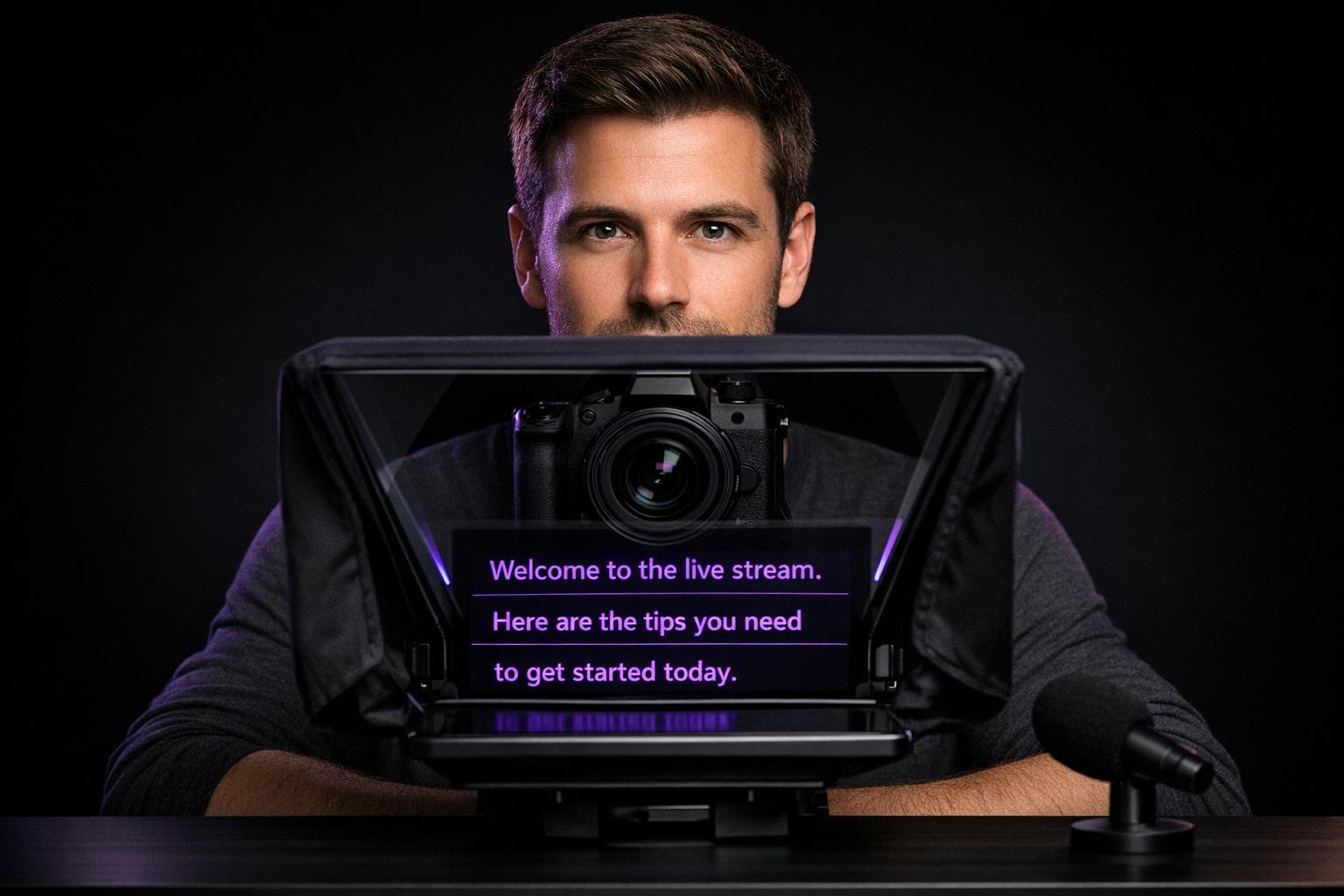
Ultimate Guide to Teleprompters for Live Streaming
Want to elevate your live streaming game? A teleprompter can help you maintain eye contact, deliver smoother presentations, and save time by reducing retakes. Whether you're a beginner or a seasoned creator, teleprompters make it easier to stay focused and professional on camera.
Key Takeaways:
- What It Is: A teleprompter displays scrolling text near your camera lens, allowing you to read your script while maintaining eye contact.
- Why It Matters: Boosts confidence, ensures consistent delivery, and enhances accessibility with clear speech for captions.
- Types:
- Tablet/Smartphone Rigs: Portable and cost-effective, starting at $89.
- Camera-Mounted Hardware: Professional-grade, ranging from $199 to $1,860.
- App-Based Solutions: Affordable and flexible, with options like PromptSmart Pro for $19.99 or Evelize starting at $2.99/week.
- Features to Look For: Adjustable scroll speed, text mirroring, compatibility with your gear, and advanced options like 4K support or voice tracking.
Quick Tip:
Set your teleprompter text slightly below the camera lens and test scroll speed before going live. This ensures natural eye contact and smooth delivery.
This guide dives into everything you need to know about choosing, setting up, and using teleprompters effectively for live streaming.
How to use a teleprompter while live streaming on iPhone | Teleprompter setup for YouTube and Twitch
sbb-itb-4a26d6a
Types of Teleprompters for Live Streaming
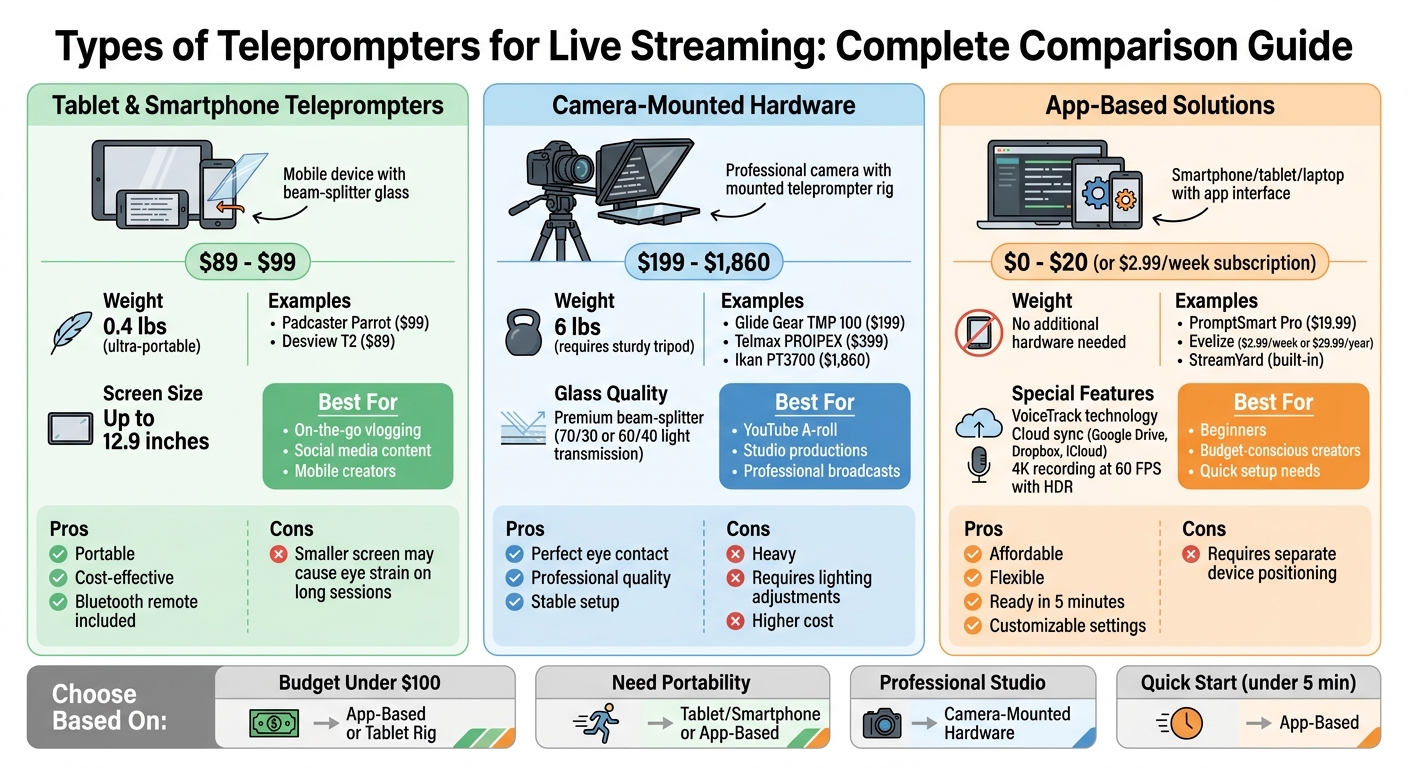
Teleprompter Types Comparison: Features, Prices & Best Use Cases
Picking the right teleprompter boils down to your budget, mobility needs, and the level of professionalism required. The three main types - tablet and smartphone rigs, camera-mounted hardware, and app-based solutions - are designed for different scenarios, from on-the-go vlogging to high-end studio productions.
Tablet and Smartphone Teleprompters
These setups use your mobile device as the display for your script. A phone or tablet sits beneath a beam-splitter glass, which reflects the text while the camera captures you. For example, the Padcaster Parrot, weighing just 0.4 lbs, costs $99 and is perfect for creators on the move. Similarly, the Desview T2, priced at $89, offers comparable portability.
Tablets are often favored for their larger screens, which make reading easier and reduce eye strain during longer sessions. Smartphones, on the other hand, are ideal for quick, portable social media content. Many rigs can accommodate devices up to 12.9 inches and often come with Bluetooth remote controls for convenient use.
Camera-Mounted Teleprompters
These professional-grade rigs attach directly to your camera lens, placing a beam-splitter glass right in front of it. This setup ensures your eyes stay focused on the camera, avoiding the side-to-side movement that can happen with off-camera screens. Options like the Glide Gear TMP 100, weighing 6 lbs, are available for $199, while mid-range models such as the Telmax PROIPEX cost $399. For studio-level production, high-end rigs like the Ikan PT3700, priced at $1,860, feature premium glass with light transmission ratios like 70/30 or 60/40.
These systems often need a sturdy tripod and thoughtful lighting to avoid reflections. Positioning your lights slightly above eye level and angling them downward can help reduce glare. For even more flexibility, app-based teleprompters are worth considering.
App-Based Teleprompters
Apps can turn your phone, tablet, or laptop into a teleprompter. For instance, PromptSmart Pro, priced at $19.99, includes VoiceTrack technology that scrolls the script as you speak and pauses if you stray from the text. Many of these apps also sync with cloud services like Google Drive, Dropbox, and iCloud, and provide features like adjustable font sizes, margin controls, and mirror modes for use with physical rigs.
Some platforms, like StreamYard, even have built-in teleprompters visible only to the host, ensuring the audience never sees the script. With app prices ranging from $0 to $20 - far more affordable than hardware setups costing $50 to $3,000+ - this is a great starting point for new streamers.
"The biggest advantage of apps is accessibility. You can start using one in under five minutes with no additional equipment." - PrompterPro Blog
A modern example is Evelize, an app offering customizable settings for scrolling speed, font size, and background color. It supports 4K recording at 60 FPS with HDR, delivering professional-quality video alongside flexible script management. You can try it free for three days, with subscription plans starting at $2.99 per week or $29.99 annually.
Next, dive into the key features that can take your live streaming setup to the next level.
Key Features to Look for in a Teleprompter
Choosing the right teleprompter boils down to three things: how customizable it is, how well it integrates with your equipment, and the professional-grade features it offers. These elements ensure you appear confident and seamless on camera, instead of fumbling with awkward settings during a live broadcast.
Customizable Settings
Look for a teleprompter that lets you adjust the scroll speed to match your speaking rhythm. Many apps even allow on-the-fly adjustments - slowing down for emphasis or pausing naturally when needed. A quick 15-second test read before going live can help you nail the ideal speed and font size.
Choose clear, easy-to-read fonts like Arial or Times New Roman, and keep margins narrow with line spacing between 0.5 and 1.0. This keeps the text close to the lens, reducing eye strain and helping you maintain eye contact with your audience. Some apps even offer specialized fonts like OpenDyslexic or advanced "Bionic reading" modes to enhance readability.
If you're using a beam-splitter teleprompter, text mirroring is a must. The app should flip your script horizontally so it reflects correctly on the glass. Additionally, formatting options like bold text, headers, and line breaks can help you deliver a natural, conversational tone.
"A well-chosen teleprompter font reduces eye strain and helps maintain a natural reading pace, which is key to a polished presentation." – Teleprompter.com
Compatibility with Your Equipment
Your teleprompter should integrate smoothly with your current gear. For camera-mounted models, make sure it fits your camera type and lens diameter. Some devices, like the Padcaster Parrot, come with multiple mounting rings to accommodate a variety of lens sizes. Also, check that the teleprompter tray can support the size of your smartphone or tablet.
Don’t forget to confirm that your tripod can handle the combined weight of your teleprompter, camera, and device. If you’re using streaming software, platforms like StreamYard offer built-in teleprompter tools visible only to the host, which can eliminate the need for additional hardware. For those who prefer to ad-lib, apps like PromptSmart’s VoiceTrack use voice recognition to scroll the text only when you speak, giving you more flexibility.
Advanced Features for Professional Use
High-end teleprompters come with features designed for professional-grade production. Look for options like 4K resolution, 60 FPS, and HDR for sharp, broadcast-quality visuals. Multi-device synchronization is another great feature, especially for teams or multiple presenters - it ensures scripts stay aligned across all screens with minimal lag. Some teleprompters even include built-in screens with USB-C or HDMI connectivity, eliminating the need for a separate device.
Evelize is a standout example of a professional teleprompter app. It supports 4K recording at 60 FPS with HDR, customizable scroll speeds, font adjustments, and even background color options. Plus, it includes built-in video editing tools with presets for social media, making it a one-stop solution for content creators. You can try it free for three days, with pricing starting at $2.99 per week or $29.99 annually.
For added control, consider hardware-agnostic options like Stream Decks, foot pedals, gamepads, or wireless remotes. Professional setups also benefit from features like margin control and text centering, which keep the script close to the camera lens to minimize visible eye movements. These advanced tools ensure a polished and professional look, even during live streaming sessions.
Setting Up Your Teleprompter for Live Streaming
Positioning the Teleprompter
To create a natural sense of eye contact during your live stream, make sure the camera lens is positioned exactly at eye level. If the lens is too high, you'll appear disconnected, and if it's too low, it might come across as unsure. Keep the teleprompter text within 1–2 inches of the lens center - this small offset helps maintain the illusion that you're speaking directly to your viewers.
Sit about 2–3 feet away from the teleprompter to prevent noticeable eye movement while reading. For those using a beamsplitter glass rig, set the mirror at a 45° angle so the script reflects clearly while the camera captures you through the glass. Adjust the text margins in your teleprompter app to keep the script centered in front of the lens, which minimizes distracting eye shifts.
To ensure consistency, mark your tripod's position on the floor with tape. If glare appears on the teleprompter glass, tweak your key light setup: move the lights further apart, raise them higher, or angle them more steeply toward your face.
Once you've nailed the positioning, you're ready to integrate the teleprompter into your streaming setup.
Integrating the Teleprompter with Your Streaming Setup
Start by attaching the teleprompter frame to your tripod using a quick-release adapter. Mount your camera securely behind the frame, ensuring the lens is centered behind the glass. Cover the lens with the teleprompter's black hood to block stray light and prevent internal reflections. Then, slide the beamsplitter glass into its frame at a 45° angle and place your tablet or monitor on the tray below the glass, securing it firmly.
Position your microphone close enough for clear audio capture, but keep it out of the camera's view to avoid echo and visual clutter. For lighting, place your key lights at a 45° angle from your face and slightly above eye level, angling them downward to reduce glare on the teleprompter glass. Before you go live, always do a quick test recording to check for any background noise or audio inconsistencies.
With everything in place, it's time to fine-tune your setup through testing.
Testing and Adjusting Settings Before Going Live
Before starting your stream, perform a 15-second test read to adjust the scroll speed to match your natural speaking rhythm. Reading your script out loud during this test can also help you identify any awkward phrases or tongue twisters that could disrupt your delivery. A quick test recording is useful for reviewing your body language, vocal tone, and eye contact.
Double-check the teleprompter glass for reflections and ensure your camera is focused on you - not the glass itself. Test your audio levels to confirm they're steady throughout your setup. Save your teleprompter app presets for font size, margins, and scroll speed so you won't have to recalibrate everything for future sessions.
These steps are key to delivering a polished, professional live stream that keeps your audience engaged.
| Issue | Likely Cause | Quick Fix |
|---|---|---|
| Glare on glass | Light angle | Adjust light placement or angle |
| Eyes darting | Wide text margins | Narrow text margins or increase font size |
| Robotic tone | Script too formal | Use contractions and simpler sentences |
| Shaky video | Mounting issues | Tighten and secure all components |
| Out of sync | Scroll speed issues | Adjust scroll speed or use a remote control |
Best Practices for Using Teleprompters in Live Streaming
Writing Scripts for Teleprompters
When writing for a teleprompter, aim for a conversational tone. Use short sentences and contractions to mirror natural speech patterns. Most people speak at a pace of 125–150 words per minute (WPM). For serious or emotional topics, slowing down to 100–125 WPM can be more effective, while high-energy content can go up to 150–170 WPM. Varying between short and medium-length lines creates a rhythm that feels more natural.
For tricky names or terms, include phonetic spellings in brackets - for example, "Pyotr [Pee-YOH-ter]" - to avoid stumbling. Delivery cues like (PAUSE), (SMILE), or (EMPHASIZE) can guide tone and gestures, helping you connect with your audience. Choose a large, clear font to make reading easier.
A great trick is the "voice note" method: read your script aloud as if leaving a casual message for a friend. This keeps your tone relaxed and conversational. Structuring your script with a clear flow - Hook → Promise → Steps → Example → Wrap - ensures your message stays engaging. Add punctuation like em dashes and frequent line breaks to naturally guide your breathing and pacing.
Maintaining Natural Eye Contact
Once your script is ready, the next step is delivering it in a way that feels genuine. Focus on the camera lens while using peripheral vision to glance at the teleprompter. Keep your head steady - small eye movements are far less distracting than noticeable head shifts.
Practice the "glance and return" technique: quickly glance at the script, then return your gaze to the lens. Pairing this with a slight head nod or downward glance can make the movement feel more natural. Train yourself to read ahead by one or two lines so you can anticipate transitions and maintain smooth delivery. Opt for a font size that allows you to see two to three lines at once without needing to move your head.
"One of the biggest giveaways that someone is reading a script is awkward, unnatural eye contact." – FlowPrompter
Using Teleprompter Apps for Flexibility
Teleprompter apps designed for mobile devices offer excellent flexibility, especially for solo streamers. These apps provide hands-free controls, allowing you to adjust scroll speed, pause, or restart without stepping out of the frame. For example, Evelize offers features like customizable scrolling speed, font size, and background color, plus tools for script creation and organization.
Set the scroll speed slightly slower - around 5–10% - to account for any nervousness during live streams. Apps like Evelize also let you edit and reformat scripts in real time, so you can adapt to changes on the fly. Features like margin adjustments help keep text centered near the camera lens, minimizing eye movement and enhancing delivery.
With caption use increasing by 572% since 2021, clear teleprompter-assisted speech is crucial for accurate automated captions. These apps also help you avoid filler words, improving the quality of your delivery and making repurposed content more polished. Structuring scripts into sections - like Intro, Key Points, and Recap - can help maintain consistent energy and pacing during longer live streams.
Conclusion
Key Points Recap
Teleprompters help creators deliver polished, engaging live streams by ensuring steady eye contact and staying on message. Choosing the right teleprompter depends on your workflow: camera-mounted rigs work best for high-quality YouTube A-roll, desk prompters are ideal for extended webinars or courses, and portable phone-based solutions suit short-form content. Aligning the teleprompter with your camera is crucial for maintaining a natural connection with your audience.
When writing scripts, aim for a conversational tone with short sentences and delivery cues. Set your scroll speed slightly slower than you think is necessary - about 5–10% slower - and practice the "glance and return" technique to avoid robotic movements. With a 572% increase in caption usage since 2021, clear delivery through a teleprompter ensures accurate automated captions, keeping your content accessible to a broad audience.
Armed with these tips, you’re ready to refine your live streaming approach.
Next Steps for Live Streamers
Start by testing a teleprompter app that fits your setup. Tools like Evelize offer features such as adjustable scrolling speed, customizable font size, and background color, along with script creation and organization options. With support for 4K resolution, 60 FPS, and HDR, this app is a powerful choice for creators looking to produce professional content without the stress of memorization.
To make your workflow smoother, try these tips: mark tripod positions on the floor for consistent framing, save your app settings for quicker setups, and record in focused blocks rather than one long take. These small adjustments can save you hours during production.
"The best teleprompters disappear into the background - you forget they're there and just deliver. That's when you know you've mastered it".
FAQs
Do I need a teleprompter if I already use notes?
Using a teleprompter has some clear benefits, even if you rely on notes. It allows you to deliver your script more naturally while maintaining direct eye contact with your audience. This eliminates the need to constantly glance down or risk losing your place, creating a more seamless and professional presentation. While notes can get the job done, a teleprompter helps you stay focused and ensures your delivery keeps the audience engaged without unnecessary interruptions.
How can I avoid looking like I’m reading?
Positioning your camera at eye level is key to creating a natural connection with your audience. This way, you’ll appear to be looking directly into their eyes. For an even smoother delivery, adjust the teleprompter’s scroll speed to match your natural speaking rhythm - this keeps your flow relaxed and conversational. Before recording, practice your script and format it in a way that allows for easy pacing. These small adjustments ensure you maintain genuine eye contact and avoid coming across as if you’re just reading.
What’s the simplest teleprompter setup for solo live streaming?
The easiest way to set up for solo live streaming is by using a portable teleprompter or placing a tablet at eye level right in front of your camera. This setup helps you read your script while keeping eye contact with your audience. You can also try a teleprompter app like Evelize, which offers adjustable settings and script management tools - perfect for creators looking for a simple, efficient solution.
Related Posts
Ready to Elevate Your Content?
Try Evelize for free and experience the easiest way to create, edit, and share professional videos. Script writing, teleprompter, and powerful video tools - all in one app!

