
Teleprompter Script Tips for Faster Editing
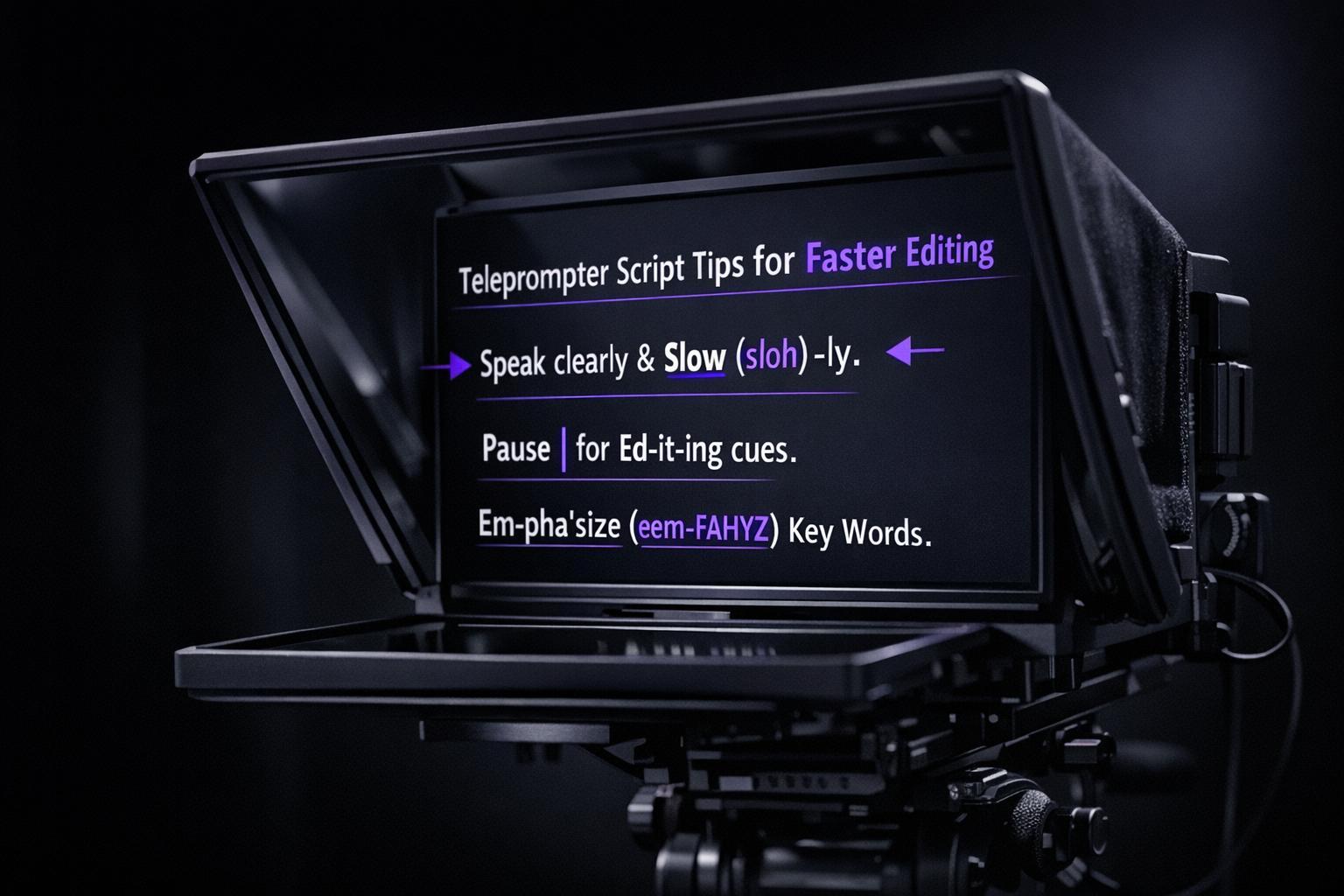
Teleprompter Script Tips for Faster Editing
Want to cut down on editing time? Start with a clear, well-structured teleprompter script. Here’s how:
- Write short sentences and paragraphs: Keep sentences under 15 words and paragraphs to two sentences max for smoother delivery.
- Add phonetic spellings: Use brackets for tricky words (e.g., Pyotr [Pee-YOH-ter]) to avoid pronunciation errors.
- Use punctuation as cues: Replace commas with dashes or ellipses to signal pauses.
- Include visual and editing notes: Mark B-roll spots or gestures like [SMILE] to guide post-production.
- Adjust readability settings: Use larger fonts, high-contrast colors, and wider line spacing to reduce eye strain.
- Practice before recording: Rehearse to identify problem areas and refine your script for natural delivery.
Tools like Evelize can simplify the process by combining scriptwriting, teleprompting, and editing in one app. You can adjust scroll speed, tweak formatting, and even edit takes directly after recording. With these tips, you’ll spend less time fixing mistakes and more time creating polished videos.
Script Formatting Tips for Using a Teleprompter
Write Short Lines and Paragraphs
Breaking your script into smaller chunks can make a world of difference when you're on camera. It helps you avoid common pitfalls like stumbling over words, losing your place, or needing endless retakes. When paragraphs are overloaded with text, your eyes have to work harder to keep up, leading to more errors and a delivery that feels robotic. Instead of focusing on connecting with your audience, you end up just trying to read the words correctly. Here's a simple fix: keep your sentences short for a smoother, more engaging flow.
"Paragraphs should be no longer than two sentences. This makes it easier for the speaker to track lines as they read from the display." – Padcaster
Aim for sentences around 15 words. Long, complex sentences often invite filler words like "um" or "uh", which can disrupt the flow and require extra editing during post-production. Short paragraphs also naturally create moments to pause and breathe, helping you avoid a rushed or breathless delivery.
Keep Sentences Under 15 Words
When sentences are kept to 15 words or fewer, they’re easier to follow and deliver. This keeps your mind from overloading on complex phrasing, allowing you to maintain better eye contact with the camera. Writing conversationally - using contractions and everyday language - makes your delivery feel natural and reduces the need for retakes.
Add Phonetic Spellings for Difficult Words
Beyond keeping your script concise, it’s essential to nail the pronunciation of tricky terms. Unfamiliar names, technical jargon, or industry-specific words can throw off your rhythm and ruin an otherwise flawless take. Adding phonetic spellings in brackets right after challenging words can be a lifesaver. For example, you might write, "Pyotr [Pee-YOH-ter] has the report".
"For difficult names or technical terms, write them out phonetically in brackets. Example: 'Pyotr [Pee-YOH-ter] has the report.'" – Even Realities
Tools like Google Translate can help you hear how a word is pronounced, making it easier to get it right. Also, spell out numbers and abbreviations exactly as they should be spoken. For instance, write "ten thousand, five hundred" instead of "10,500" to avoid hesitation and keep your delivery smooth and consistent.
Add Punctuation and Formatting Cues
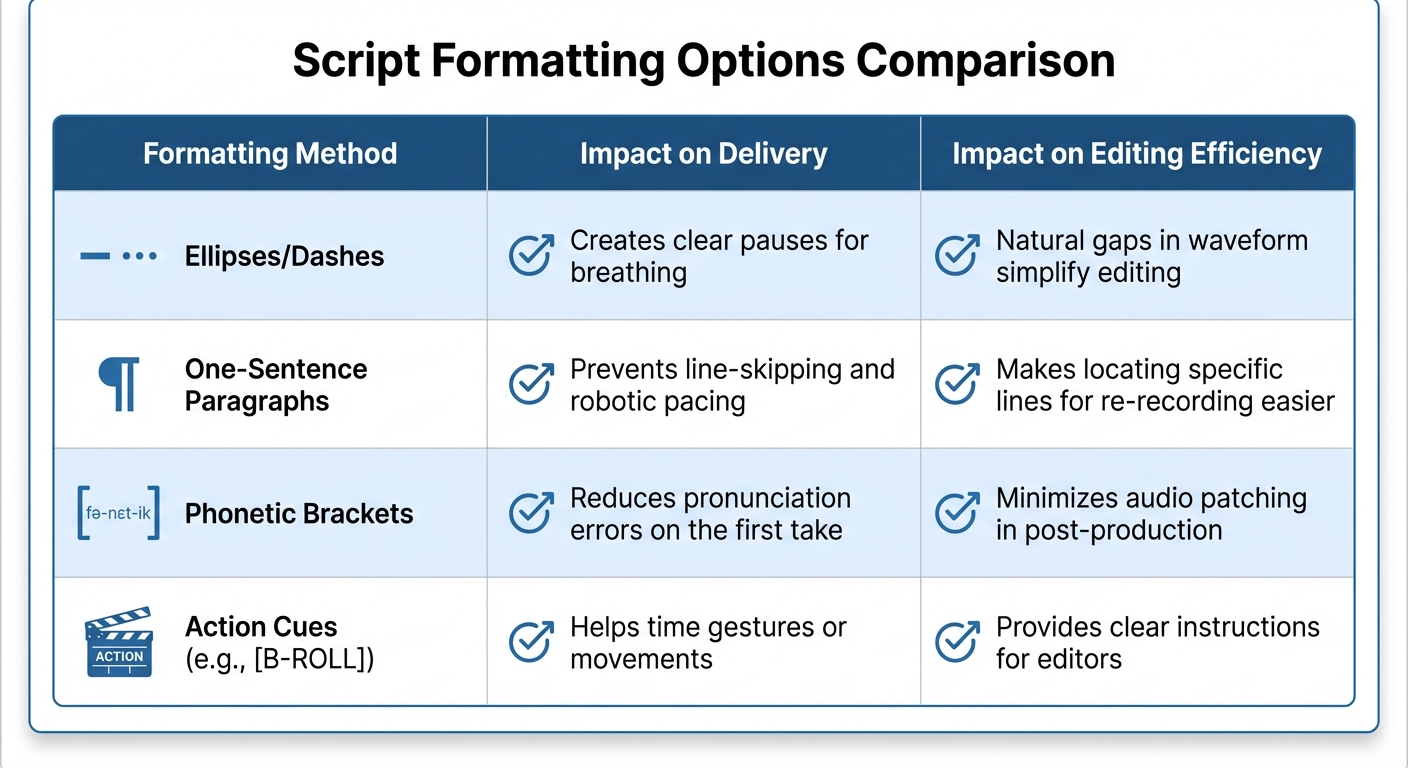
Teleprompter Script Formatting Methods: Impact on Delivery and Editing
When working with a concise script, precise punctuation can significantly improve your delivery and editing process. If you're standing 8 to 10 feet away from your teleprompter, standard punctuation might blend into the text. At this distance, smaller punctuation marks can be easy to miss, leading to rushed delivery and more edits.
Use Punctuation for Pauses and Emphasis
Dashes ( - ) or ellipses (...) can replace commas to create clearer pause cues. Television news presenter Owen Conflenti shares this tip:
"Try replacing commas with dashes or ellipses… for a better visual cue that signals a pause… or that the thought is continuing… like this sentence".
These larger punctuation marks are easier to spot and help maintain a natural rhythm. For added emphasis, you can spell out contractions - for example, using "do not" instead of "don’t". Additionally, action cues like [SMILE] or [PAUSE] can guide gestures without breaking your flow .
Customize Text for Better Readability
Evelize offers customization features to make your scripts more readable during recording. Adjustments such as font size, line spacing, and background color can reduce eye strain and prevent text from blending together as it scrolls. High-contrast settings, like white text on a black background, are especially effective for longer recording sessions.
Breaking your script into one-sentence paragraphs can also improve readability. This approach gives your eyes a clear path to follow and avoids the "shifty eye" effect caused by losing your place. As Owen Conflenti explains:
"Periods and commas don't always cut it from ten feet away when they're scrolling along. A great tip is to make a new paragraph for each sentence in your script".
This simple adjustment minimizes line-skipping errors and makes it easier to locate specific lines if you need to re-record.
Script Formatting Options Comparison
| Formatting Method | Impact on Delivery | Impact on Editing Efficiency |
|---|---|---|
| Ellipses/Dashes | Creates clear pauses for breathing | Natural gaps in waveform simplify editing |
| One-Sentence Paragraphs | Prevents line-skipping and robotic pacing | Makes locating specific lines for re-recording easier |
| Phonetic Brackets | Reduces pronunciation errors on the first take | Minimizes audio patching in post-production |
| Action Cues (e.g., [B-ROLL]) | Helps time gestures or movements | Provides clear instructions for editors |
Up next, we'll dive into how visual and editing notes can make your post-production workflow even smoother.
Add Visual and Editing Notes to Scripts
To cut down on editing time, make your script more detailed by including specific visual and audio notes. A teleprompter script doesn't just guide the presenter - it becomes a roadmap for the entire post-production team. Adding clear instructions for visuals and edits removes guesswork and speeds up the process. As the team at Teleprompter.com explains:
"A well-organized script helps you keep your thoughts straight and makes it easier to match up visuals with dialogue, which makes the production process go more smoothly".
Mark B-Roll and Visual Cues
Use simple placeholders in brackets to indicate where additional footage or visuals should go. For instance, you could write [Insert B-Roll of product] or [Cut to product close-up] at the exact moment in your script when that visual is needed. This is especially important when working with a team, as it ensures everyone knows which visuals pair with specific parts of the dialogue.
Audio cues can also be added, like [Background music fades in], to align sound design with your visuals. To keep these notes clear, use consistent formatting - such as brackets or all-caps - to separate them from the spoken text. For example, instructions like (PAUSE), (SMILE), or (POINT TO CHART) can signal actions without disrupting the script's flow.
These markers also make it easier to adapt your video for different platforms.
Use Platform-Specific Presets
Evelize simplifies the editing process by offering presets tailored for social media platforms. After filming, you can use one-click presets for Instagram, TikTok, and YouTube to automatically format your video without needing to crop manually. This ensures your visuals and script are optimized for each platform's unique requirements, saving valuable time during post-production.
With Evelize's integrated tools, your visual notes stay accessible throughout the entire process. You can write, organize, and search for scripts within the platform, then trim unwanted parts and select the best takes after filming. This streamlined system keeps your visual instructions and final edits perfectly aligned.
sbb-itb-4a26d6a
Adjust Line Spacing and Scroll Speed
Fine-tuning your line spacing and scroll speed can dramatically improve how natural you appear on camera. If your text is cramped or scrolling too quickly, it can lead to stumbles, more retakes, and longer editing sessions. The solution? Make it easier for your eyes to follow the script and sync the scroll speed with your speaking pace. Here’s how to get it just right.
Increase Line Spacing for Smoother Reading
Tight, cluttered text makes it harder for your eyes to track smoothly, especially when it’s moving. To avoid this, adjust your script to 1.5 or 2.0 line spacing. As MeyerPro advises:
"Teleprompter text should feel roomy, not super packed".
This extra spacing helps prevent words from visually blending together and reduces eye strain, especially during long recording sessions. For added clarity, leave a blank line between paragraphs to naturally indicate pauses. Keep each line to around 8–10 words to limit how much your eyes have to move horizontally. Tools like Evelize offer adjustable font sizes and spacing, making scripts easier to read and reducing on-camera missteps.
Sync Scroll Speed with Your Speaking Pace
Most people speak at a natural pace of 125–150 words per minute when recording video. Start within this range, then tweak it based on how you sound. If you’re explaining complex topics, slowing down to 110–130 words per minute can improve clarity. On the flip side, high-energy social media clips often hit speeds of 170+ words per minute. These benchmarks provide a good starting point, but the key is to test and adjust.
Practice reading a paragraph aloud while observing the scroll speed - your words and the text should stay in sync. You shouldn’t feel rushed or like you’re waiting for the next line to appear. Voice-activated scrolling can automatically pause when you stop speaking, but manual foot-pedal controls give you the flexibility to adjust in real time for a more natural delivery.
Practice Scripts Before Recording
Rehearsing your script before recording can save you a lot of editing time. Reading it out loud helps you catch awkward phrases or words that might trip you up. As Marcy Golebiewski, IT Client Services Director at Intel, wisely says:
"You don't have to memorize the copy, but you do need to practice, practice, practice… out-loud."
Running through your script a few times helps you find a natural rhythm, so you don’t sound like you’re just reading off a page. Train yourself to scan a line or two ahead while speaking - this keeps your delivery smooth and avoids that dreaded robotic monotone. If a sentence consistently trips you up, rewrite it. Catching these issues early means fewer retakes and less time spent sorting through footage later. Plus, rehearsing helps you feel more prepared to fine-tune technical settings.
Practice sessions are also a great time to tweak your setup. If you notice your eyes darting side to side like you're watching a tennis match, your font might be too small or your margins too wide. Adjust things like font size, line spacing, and contrast to make the text easier to follow. Use a timer to ensure your script fits the desired length - whether it’s a quick 30-second clip or a detailed 3-minute explainer.
During rehearsals, you can also test out tools like Evelize's playback features to refine your performance. After recording a practice take, the "Select the Best Take" feature lets you review different versions and spot issues like rushed delivery or missed cues. The in-app editor allows you to trim mistakes right away, so you can experiment with adjustments and see the results immediately. You can even toggle between font sizes and background colors to find the best contrast for your filming setup, which can reduce eye strain during longer sessions.
Marking delivery cues directly in your script can also make a big difference. Add notes like (PAUSE), (SMILE), or even phonetic spellings for tricky names. These small reminders help you stay consistent and free up mental energy to focus on your tone, body language, and connecting with your audience.
Conclusion
Crafting a teleprompter script that works seamlessly involves a few key steps: keep sentences short (under 15 words), include formatting cues like phonetic spellings and delivery notes, add visual markers for B-roll, and always rehearse out loud before hitting record. These practices help you avoid stumbles, cut down on filler words, and minimize jump cuts - saving you editing time. A clear, well-structured script makes it easier to nail your delivery in fewer takes.
Pairing these techniques with the right tools can make your workflow even smoother. Take Evelize, for example - it combines scriptwriting, teleprompting, and editing into one streamlined platform. You can adjust scroll speed, tweak font sizes, and pick background colors to improve readability. The app even features an embedded editor, so you can trim mistakes immediately after recording. Plus, its "Select the Best Take" tool lets you compare different versions without needing another program. And with built-in social media presets for platforms like Instagram, TikTok, and YouTube, you can skip the hassle of manual resizing and go straight from script to export.
The real time-saver, though, is addressing potential issues before you start filming. A well-prepared script with clear cues and an easy-to-read layout reduces the need for post-production fixes. When you combine thoughtful preparation with tools that simplify recording and editing, you create a workflow that’s efficient, stress-free, and focused on producing engaging content. A polished script is the foundation for smooth filming and hassle-free editing.
FAQs
How do phonetic spellings in scripts help speed up editing?
Using phonetic spellings in teleprompter scripts can be a game-changer for presenters. It ensures they pronounce tricky or unfamiliar words correctly on the first attempt, cutting down on errors and the need for multiple retakes.
This approach keeps the recording process running smoothly, saving valuable time and effort while boosting the overall quality of your video content.
Why use one-sentence paragraphs in teleprompter scripts?
Using one-sentence paragraphs in teleprompter scripts makes it much easier for presenters to stay on track and deliver their lines smoothly. The short structure creates clear breaks on the screen, allowing the presenter’s eyes to quickly locate the next line, which helps cut down on mistakes and keeps the flow natural.
This approach also helps with pacing. The short paragraphs act as built-in cues for pauses and breaths, making the delivery feel more confident and polished. Plus, editing scripts becomes a breeze - each idea stands alone, making it simple to spot and fix any issues without wasting time.
Evelize’s teleprompter app takes this to the next level. It lets creators format scripts into one-sentence paragraphs effortlessly, automatically adding spacing for better readability and quicker edits. The result? Smoother production and better-quality videos.
How does scroll speed affect the flow of your video?
Adjusting the scroll speed to align with your natural speaking rhythm can make a big difference in how your message comes across. When the pace matches your flow, your delivery feels smoother and more natural - neither rushed nor sluggish. This not only keeps your audience engaged but also allows you to maintain better eye contact with the camera, adding a more polished and professional touch to your video.
Spending a few moments to fine-tune the scroll speed can elevate the quality of your content, making it easier for viewers to stay connected and truly absorb your message.
Related Posts
Ready to Elevate Your Content?
Try Evelize for free and experience the easiest way to create, edit, and share professional videos. Script writing, teleprompter, and powerful video tools - all in one app!


