
Teleprompter Speed vs. Natural Delivery
Teleprompter Speed vs. Natural Delivery
If your teleprompter is too fast, you sound rushed. If it’s too slow, you sound flat. I’d start around 125–150 words per minute, then adjust based on how I actually speak on camera.
Here’s the short version:
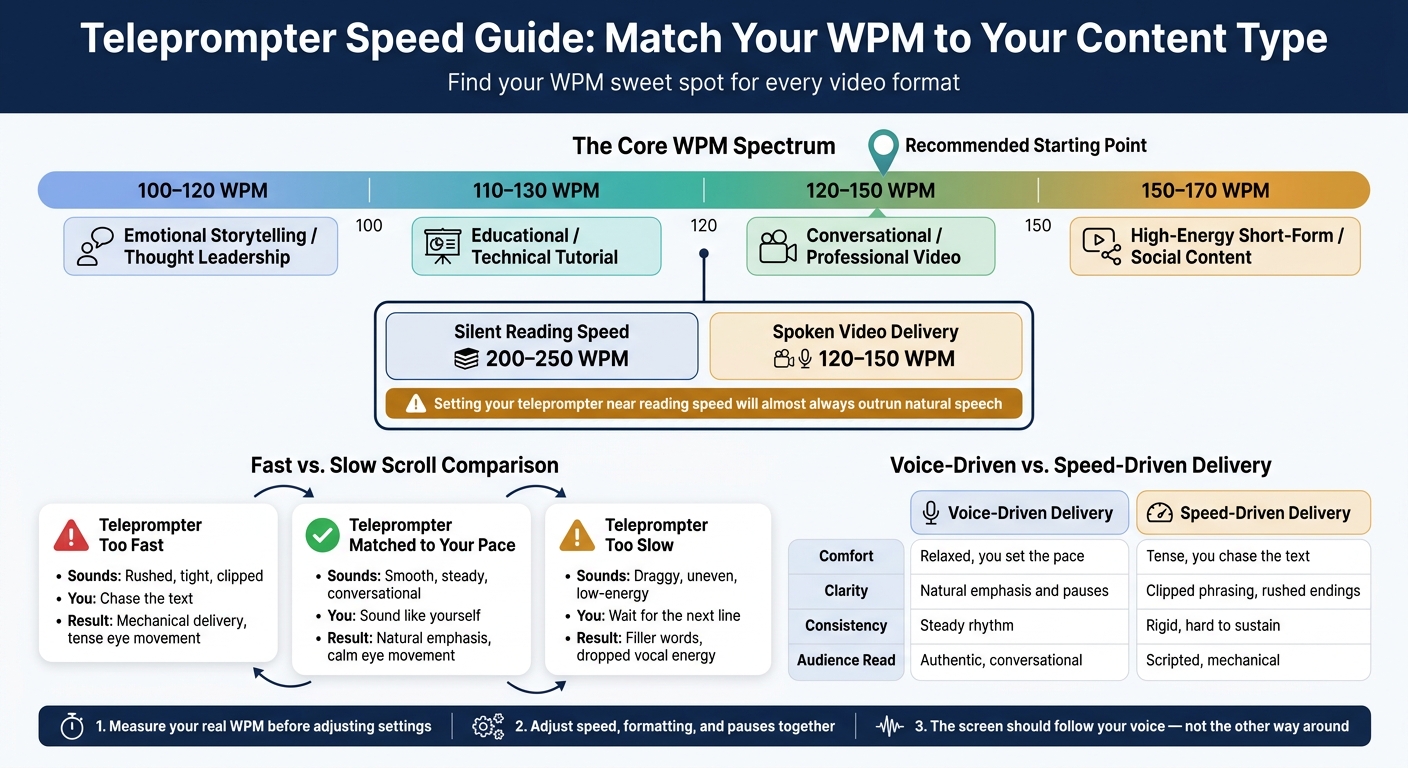
- Most video delivery lands at 120–150 WPM
- Silent reading is often 200–250 WPM, which is far too fast for spoken delivery
- Tutorials often work better at 110–130 WPM
- Story-led or reflective videos often fit 100–120 WPM
- Short-form social clips can push to 150–170 WPM if speech stays clean
- A teleprompter that runs 10%–20% faster than my speaking pace can lead to clipped lines, weak pauses, and tense eye movement
- Speed alone won’t fix delivery; I also need short lines, clear spacing, and pause marks
What matters most is simple: the screen should follow my voice, not the other way around. I’d test a few short takes, watch for rushed endings or awkward gaps, and then make small changes.
Built-In Teleprompter Explained: Scroll Yourself for Natural On-Camera Delivery
sbb-itb-4a26d6a
Quick comparison
| Situation | What it sounds like | Common result |
|---|---|---|
| Teleprompter too fast | Rushed, tight, clipped | I chase the text |
| Teleprompter too slow | Draggy, uneven, low-energy | I wait for the next line |
| Teleprompter matched to my pace | Smooth, steady, conversational | I sound more like myself |
That’s the whole tradeoff: the right speed gives me room to breathe, pause, and stress key words without sounding like I’m reading.
How teleprompter speed affects pacing, clarity, and viewer trust
When a teleprompter runs 10–20% faster than the way you naturally speak, the problem shows up fast. You start rushing your breaths, clipping phrases, and skipping the pauses that make speech sound human. Viewers don’t read that as confidence. They read it as strain. And that mismatch shows up in your eye movement too.
When the speed lines up with your natural rhythm, everything settles down. Your eyes move in calmer, longer sweeps. You also get more chances to glance at the lens for emphasis, which feels like a real conversation instead of a stiff read.
Speaking speed is not the same as reading speed
Silent reading is often around 200–250 WPM, while spoken delivery for video usually lands closer to 120–150 WPM. So if your teleprompter is set closer to skim-reading speed, it will almost always outrun the way people actually talk. That’s why a script can look easy on screen but still feel too fast the second you say it out loud.
Real delivery slows down because of pauses. You pause to breathe, to stress a point, and to shift from one idea to the next. That matters even more in tutorials and persuasive scripts, where people need a beat to follow what you’re saying.
A practical starting range for conversational delivery
A good starting point depends on the kind of video you’re making:
| Content Type | Suggested Range |
|---|---|
| Educational / technical tutorial | 110–130 WPM |
| Emotional storytelling / thought leadership | 100–120 WPM |
| Conversational / professional video | 120–150 WPM |
| High-energy short-form / social content | 150–170 WPM |
The lower end gives viewers more time to process dense ideas. The higher end can work for fast-moving social clips, but only if your articulation stays clean and the visuals keep up with the pace. If you’re not sure where to begin, start a little slower than feels natural, then bump the speed up in small steps and review a few test recordings.
Once you know your baseline, the next step is figuring out whether the scroll feels rushed or dragged.
Fast teleprompter speed vs. slow teleprompter speed
Fast and slow scrolls fail in different ways.
When the teleprompter scrolls too fast
Using your baseline WPM, fast and slow scrolls show up in different ways. When a script moves too fast, you start chasing the text. Breathing gets squeezed, phrases get clipped, and some words disappear on the way out. Transitions can vanish too. On camera, that comes across as rushed and mechanical.
Fast scrolls can work for short-form and promotional reads. But they leave less room for breath, emphasis, and recovery.
When the teleprompter scrolls too slow
Now the problem flips. You end up waiting for the next line, and that lag throws off your rhythm. It also opens the door to filler words like "um" and "uh", and your vocal energy starts to drop. Even a strong script can sound hesitant.
Tutorials, technical explanations, and sensitive messages tend to work well with a measured scroll, but only when that slower pace is done on purpose. There’s a big difference between a clean pause after a key idea and dead air where you’re just waiting for the text to move.
Slow scrolls can help with tutorials and sensitive topics, but they can stall your rhythm if they aren’t paired with deliberate pauses.
The next step is matching that pace with pauses and formatting.
How to find the right balance for a natural delivery
Teleprompter Speed by Video Type: WPM Guide for Natural Delivery
Measure your real speaking pace before changing settings
Start with how you actually speak, not with a teleprompter speed you picked out of thin air. Read a short script aloud without using a teleprompter, record it, time it, count the total words, and divide by the number of minutes spoken. That gives you your real words-per-minute baseline and your starting teleprompter speed.
Run the test two or three times with different scripts, then average the results. After that, watch the playback closely. Pay extra attention to line endings and transitions, because that’s usually where pacing problems show up first.
Adjust speed, formatting, and pauses together
Scroll speed by itself won’t fix a delivery that feels stiff. If your script is packed into dense paragraphs, even the right speed can still feel clunky. Break the text into shorter lines, space out key ideas, and add pause markers where you’d normally take a breath.
Make changes one at a time. Reformat the script, test the speed again, then add pauses. That makes it much easier to spot what’s helping and what’s getting in the way. Font size, line spacing, and screen-to-lens distance matter too, since they shape how easily you can read without strain.
Evelize keeps script writing, teleprompter controls, and recording in one workflow, so you can test changes faster.
Once your script and pacing line up, the next thing to check is simple: does the delivery feel like it’s coming from your voice, or from the screen?
Voice-driven delivery vs. speed-driven delivery
Use the comparison below to spot whether the screen is setting the pace.
| Voice-Driven Delivery | Speed-Driven Delivery | |
|---|---|---|
| Comfort | Relaxed; you set the pace | Tense; you chase the text |
| Clarity | Natural emphasis and pauses | Clipped phrasing, rushed endings |
| Consistency | Steady rhythm across takes | Can feel more rigid or harder to sustain |
| Audience Read | Authentic, conversational | Scripted, mechanical |
Use that test to guide your next take.
Conclusion: Match the teleprompter to your voice, not the other way around
Once you've tested speed, formatting, and pauses, the last move is simple: set the teleprompter to match your natural rhythm. The best teleprompter speed is the one that lets you sound like yourself. Your voice should set the pace, not the screen.
A fast scroll can add urgency, but it can also make your delivery feel rushed. A slower scroll gives you more control, though it can drag and kill momentum if you overdo it. A good starting point is around 125 to 150 WPM, then tweak it based on the type of content and how you like to speak.
Speed also works better when it's paired with short lines and planned pauses. That combo makes the script easier to follow and gives your delivery room to breathe.
Try recording a few short clips. Then watch for signs of strain, awkward gaps, or places where your pacing feels off. From there, make small adjustments instead of big jumps.
If you want a tool built for that kind of workflow, Evelize comes with customizable teleprompter controls and recording tools.
FAQs
How do I find my natural speaking pace?
Read your script out loud so you can spot natural breathing points and get a feel for the rhythm. Most people speak at about 125 to 160 words per minute, but your pace should match the kind of content you're delivering.
Next, do a 15- to 60-second test read to set the scroll speed in Evelize. The goal is simple: the text should sound conversational, not rushed and not dragging. You can add visual cues like [pause] to guide your delivery, then tweak the speed until everything feels smooth, polished, and easy to say.
What signs show my teleprompter is too fast or too slow?
If the scroll moves too fast, you can start to feel rushed. That often leads to more stumbles, a stiff tone, or delivery that sounds a bit robotic. But if it moves too slowly, your rhythm can fall apart, your eyes may drift out of sync with your voice, and the whole thing can feel clunky.
The sweet spot is a scroll rate that fits your natural speaking pace. For most adults, that’s about 130–150 words per minute. Start there, then do a short 30–60 second test read. If your voice and the text stay lined up, you’re in good shape. If not, tweak the speed until they match.
Should I change speed or reformat the script first?
First, reformat the script. Then lock in your scroll speed.
Use 1.5 to 2.0 line spacing.
Keep each line to about 8 to 10 words.
Add clear sections or visual cues for pauses and emphasis.
Once the script is easy to read, you can match the scroll speed to your natural speaking pace.
Related Posts
Ready to Elevate Your Content?
Try Evelize for free and experience the easiest way to create, edit, and share professional videos. Script writing, teleprompter, and powerful video tools - all in one app!


