
How To Organize Scripts for Teleprompters
How To Organize Scripts for Teleprompters
Struggling with teleprompter scripts? Here's the solution. A well-organized script ensures smooth delivery, prevents mistakes, and saves time. This guide breaks down how to structure scripts, format them for readability, and manage multiple projects efficiently. Key takeaways:
- Plan your script: Define your audience, purpose, and main points. Keep sections concise and focused.
- Format for teleprompters: Use large fonts, short sentences, and clear spacing. Add visual cues like bold or ALL CAPS for emphasis.
- Use tools like Evelize: Centralize scripts, adjust scrolling speed, and categorize projects for easy access.
- Rehearse effectively: Practice reading aloud, adjust timing, and refine delivery to match your speaking pace.
Organized scripts lead to polished performances. Follow these steps to simplify your workflow and improve your on-camera presence.
4-Step Process for Organizing Teleprompter Scripts
Step 1: Plan Your Script Structure
Identify Your Purpose and Audience
Before you start writing, nail down your goal and who you’re speaking to. A beginner-friendly tutorial requires a totally different tone than a product demo aimed at seasoned industry pros. Even the same topic can take on a new shape depending on your audience - busy executives might want quick, actionable insights, while hobbyists may prefer in-depth explanations.
Here’s a helpful exercise: fill in the blanks for this sentence - “Most videos about [topic] share [common advice] but miss [your unique insight].” This forces you to zero in on a fresh angle that grabs attention. For example, instead of a generic “Camera settings for videos,” you could go with, “The one setting that transforms home studio quality.”
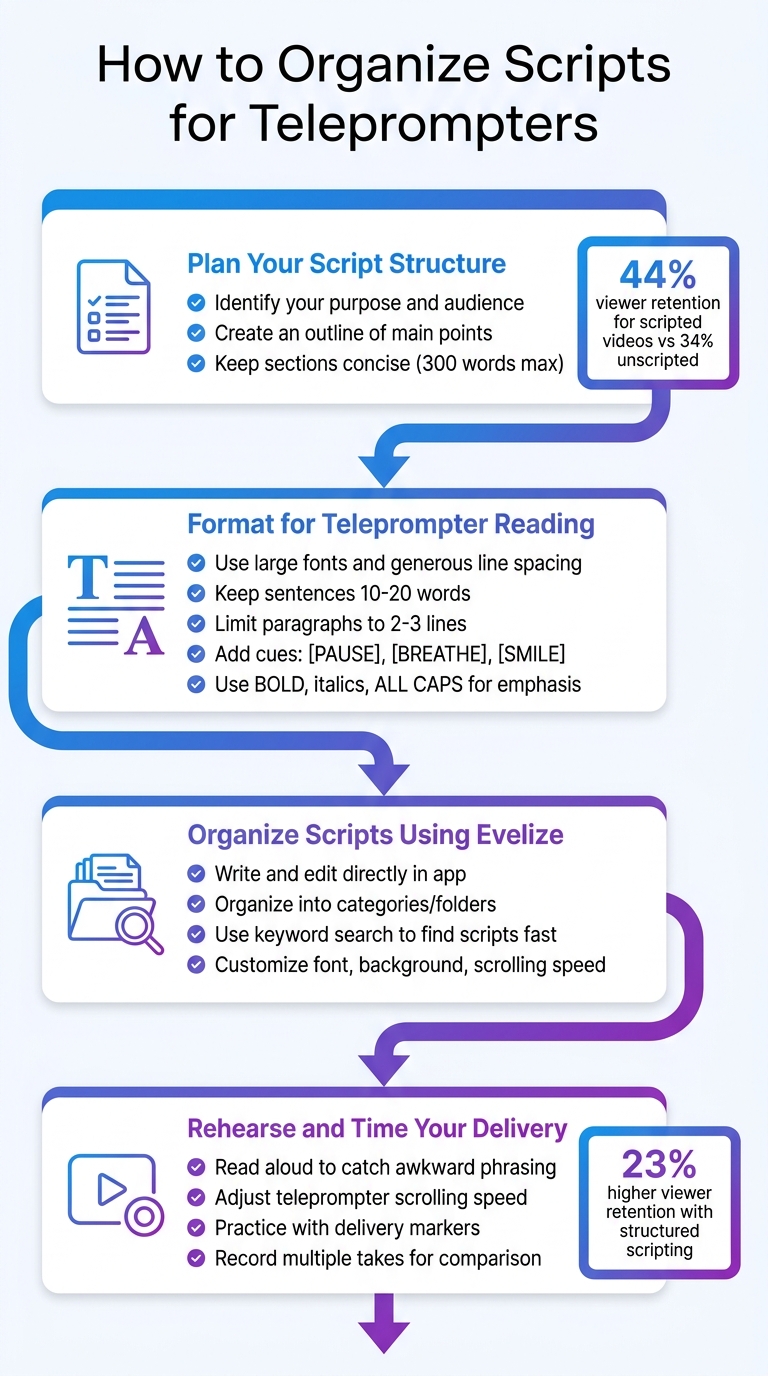
Dig into what your audience actually wants by reading comment sections on popular videos in your niche. Look for recurring questions or complaints about what’s missing in current content. These gaps are gold - they give you the perfect starting point for your script. Research backs this up: creators who follow a structured scripting process see 23% higher average viewer retention compared to those who wing it.
When your purpose and audience are crystal clear, building your script becomes so much easier.
Create an Outline of Main Points
Now that you’ve got a clear direction, map out your script into well-defined sections. A simple framework works best: start with a setup that introduces the problem, follow with main points that deliver your solution, back those points with evidence, and wrap it up with a conclusion that reinforces the takeaway. Every point should answer the question, “Why does this matter?” If it doesn’t, cut it.
Arrange your points to build momentum. Start with a strong hook, dive into your supporting details, and finish with a memorable insight. Keep each section concise - around 300 words max - to maintain a steady flow. This structure isn’t just for show; it works. Scripted videos hold on to 44% of viewers, compared to only 34% for unscripted ones.
sbb-itb-4a26d6a
Script Formatting Tips for Using a Teleprompter
Step 2: Format Your Script for Teleprompter Reading
Getting your script ready for a teleprompter isn’t just about writing - it’s about making sure it flows smoothly on-screen and is easy to follow while speaking.
Set Font Size and Line Spacing
A great script means nothing if you can’t read it comfortably from 2–3 feet away. Large fonts are a must for teleprompter use. The exact size depends on your screen, but when in doubt, go bigger - you don’t want to squint or lean forward to see the words.
Generous line spacing is another key factor. It creates natural pauses and helps you stay focused as the text scrolls. Adding blank lines between sections or major topic changes gives your eyes some breathing room and keeps everything organized.
Keep paragraphs short - just 2–3 lines - and stick to sentences that are 10–20 words long. Long blocks of text can be overwhelming on a scrolling screen, and long sentences may rush your delivery. If you find a sentence with a comma and "and", try splitting it into two shorter, punchier ones.
Always read your script out loud to catch any awkward wording. Use contractions like "you’ll" instead of "you will" to keep things conversational. For technical or complex topics, slow down the teleprompter speed by 10–15% to give yourself and your audience more time to absorb the information.
Once your font and spacing are set, it’s time to add visual cues to guide your delivery.
Add Cues and Emphasis Markers
Formatting isn’t just about readability - it also shapes how you deliver your lines. Without visual cues, even the best script can come across as flat. Use markers like bold, italics, or ALL CAPS to highlight words that need extra energy or emphasis.
Include bracketed cues like [PAUSE], [BREATHE], [SMILE], or [LOOK AT CAMERA] to remind yourself when to pause or engage with your audience. For instance, pausing for 1–2 seconds after a key point or 2–3 seconds before a big announcement can create a dramatic effect. You can also use ellipses (...) to signal a deliberate pause for emphasis.
Transition words like "NOW," "NEXT," or "FINALLY" can help signal shifts in your narrative, making it easier for both you and your audience to follow along.
"The best teleprompters disappear into the background - you forget they're there and just deliver. That's when you know you've mastered it." - Alex Chen, tech YouTuber.
Lastly, practice using a subtle S-curve with your eyes (left-center-right) to create a natural, engaging appearance on camera.
Step 3: Organize Scripts Using Evelize
Once your script is formatted, keeping it organized becomes crucial - especially if you're juggling multiple projects. Evelize helps you centralize your script library, so you can say goodbye to the mess of scattered notes, external documents, and random desktop files.
Write and Edit Scripts Directly in Evelize
Evelize's "Create" feature lets you draft, edit, and even record scripts all within the app. No need to jump between tools. The editor is clean and simple, allowing you to focus on your content without distractions.
You can customize your writing experience by adjusting font size, background color, and scrolling speed. For example, if you're filming outside in bright light, switch to high-contrast colors for better visibility. These small tweaks can make a big difference in your recording workflow.
Organize Scripts into Categories
As your script collection grows, staying organized becomes key. Evelize allows you to group scripts into categories or folders, making it easy to separate content like weekly vlogs, product reviews, or tutorials. This way, when you’re prepping for a shoot, you can quickly find the script you need without wasting time.
Regularly review your library to delete old drafts or outdated versions. A tidy, streamlined interface means less scrolling and quicker access to the scripts you actually use. And if folders aren’t quite enough, Evelize’s search tool has you covered.
Find Scripts Fast with the Search Tool
Manually scrolling through dozens of scripts can eat up valuable time. Instead, use Evelize’s keyword search to locate scripts in seconds. For instance, if you’re working on a series about productivity tips, just type "productivity" and all related scripts will pop up instantly.
To make the search feature even more effective, include specific keywords in your script titles or content when you create them. This small step ensures you can quickly retrieve what you need during time-sensitive filming sessions. Just type, find, and get back to recording.
Step 4: Rehearse and Time Your Delivery
Once your script is organized and formatted, it’s time to rehearse. Silent reading won’t cut it - speaking the script aloud is crucial for catching delivery issues. Awkward phrasing, tongue-twisters, or stiff sentences often go unnoticed until you hear them. As LilPrompter wisely points out: "One practice read-through catches problems that you'll never notice by reading silently." If you trip over a sentence during practice, don’t try to memorize it - rewrite it immediately to make it flow better.
With your script ready, practice reading it aloud to fine-tune your delivery. Use these sessions to adjust the teleprompter’s scrolling speed in Evelize. The goal is to find a balance: the text should move quickly enough to keep your energy up but not so fast that you’re rushing through important points. Keep tweaking the speed until it matches your natural speaking rhythm, ensuring your delivery feels smooth and unhurried.
Pay close attention to your delivery markers during practice. These markers guide pauses and emphasize key points, so make sure they feel natural as you speak. If needed, use formatting like bold, italics, or ALL CAPS to highlight words or phrases that require extra emphasis. This helps you avoid a flat, monotone delivery.
Timing is another critical step. Rehearse your entire script at the pace you plan to use during filming and note how long it takes. If you exceed your target video length, trim unnecessary sections or tighten up sentences. Evelize makes this process easier by allowing you to record multiple takes. Review these recordings to compare versions and choose the one that delivers your message most effectively.
For visual clarity, keep sentences between 10–20 words and limit paragraphs to 2–3 lines. Use blank lines to create natural breaks, making the script easier to navigate during your performance. These small adjustments can make a big difference in how polished and professional your delivery feels.
Managing Multiple Scripts
Once you've optimized a single script, the next challenge is managing several at once. Whether you're working on a weekly series, prepping for a batch recording, or juggling multiple client projects, staying organized is key. Without a clear system, it's easy to mix up versions or lose track of the final draft. A structured workflow can make handling multiple scripts much smoother.
Create Templates for Recurring Content
For regular video series - like weekly updates, product reviews, or educational videos - having a master template can save a lot of time. Set up your preferred font size, line spacing, scroll speed, and background color in advance. In Evelize, you can export this setup as a .prompt file, which keeps all your settings intact along with placeholder text. When starting a new script, just import the template and replace the placeholders with fresh content.
To stay organized, use clear naming conventions like "TEMPLATE:" or "SERIES_A:". This is especially helpful for content with repetitive elements, such as intros, sponsor mentions, or calls to action. It ensures consistency across episodes and cuts down on setup time.
Organize Scripts in Batches
When dealing with larger projects, preparation is everything. Before a recording session, arrange your scripts in the exact order you'll record them. Evelize's Custom arrangement feature makes this easy - just go to "Edit", select "Custom", and drag your scripts into the right sequence for filming.
For ongoing projects, adopt descriptive file names that make it easy to identify content at a glance. Instead of generic titles, use names like "ProjectName_Scene01" or "May2026_ProductLaunch_Intro." You can also use Evelize's automated sorting options - like "Newest", "Oldest", or alphabetical order - to quickly locate what you need. And when you're done with older scripts, switch to Edit mode and use the batch deletion feature to clean up multiple files in one go.
Wrapping It Up
Getting the structure and format right is the key to delivering a polished performance. When it comes to organizing teleprompter scripts, success boils down to four main steps: crafting a clear outline, formatting text for readability, managing everything in one place, and practicing until your delivery feels effortless. These elements - outline, formatting, organization, and rehearsal - combine to ensure a smooth and professional delivery. After all, even the best-written script loses its value if you can't access it quickly when needed.
This is where Evelize steps in, bringing all these elements together in one convenient platform. With Evelize, you can write your scripts directly in the app, adjust scrolling speed to match your speaking pace, and organize everything with keyword searches and custom arrangements. Plus, its 4K resolution, 60 FPS recording, and built-in editing tools allow you to handle your entire production without bouncing between multiple programs.
Streamlining your workflow can save time on retakes and speed up production. Adjust your font for lighting conditions, find your scripts instantly, and rehearse with your filming setup to eliminate unnecessary delays. These small adjustments can make a big difference, helping you avoid mistakes and boosting your confidence on camera.
"One practice read-through catches problems that you'll never notice by reading silently."
If you're creating regular video content - whether it's weekly updates, educational series, or client projects - having organized scripts is non-negotiable. Take advantage of Evelize's three-day free trial and see for yourself how combining script creation, teleprompter functionality, and video recording in one app can revolutionize your production process. It’s a game-changer for anyone serious about efficient and professional video production.
FAQs
What’s the ideal teleprompter font size?
The best font size for a teleprompter strikes a balance between readability and comfort. Typically, a size of 24-36 points works well, as it’s large enough to read easily without forcing excessive eye movement. Combine this with high-contrast colors and wide line spacing to make the text clear and reduce strain during use. Keeping the text legible ensures a smoother, more natural delivery.
How do I add natural pauses and emphasis?
To keep your teleprompter script sounding natural, include visual cues such as [PAUSE], [SMILE], or [GESTURE] to help control your pacing and tone. Use bold text or ALL CAPS to emphasize important points, and add line breaks to improve timing and readability. Make sure to adjust the font size and scrolling speed in your teleprompter app to align with your speaking pace. Practicing these techniques can lead to a more fluid and conversational delivery.
How do I avoid mixing up script versions?
To keep track of script versions without confusion, it's essential to have an organized system. Start by renaming scripts to clearly indicate their versions. You can use naming conventions or tags to differentiate drafts, revisions, and final versions. For example, include version numbers or dates in the file names. Additionally, save each version separately in a structured order - this way, you'll always know which version you're working with and avoid mix-ups. Consistency is key.
Related Posts
Ready to Elevate Your Content?
Try Evelize for free and experience the easiest way to create, edit, and share professional videos. Script writing, teleprompter, and powerful video tools - all in one app!


