
Facebook Video Specs 2026: Format Guide
Facebook Video Specs 2026: Format Guide
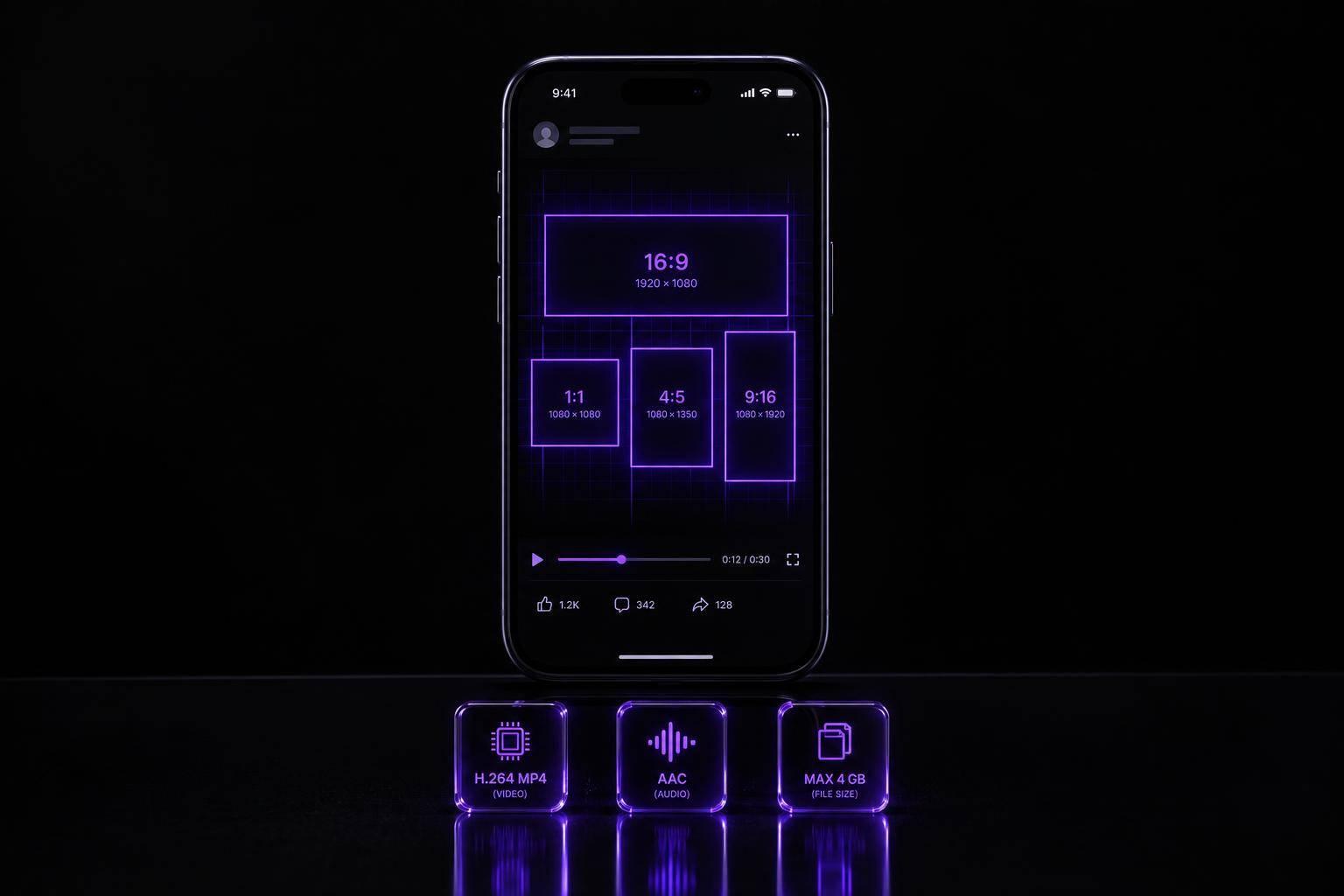
Facebook video specs depend on how the video is published - not just where it appears. Before exporting, check whether it’s an organic post, a Reel, or a Feed ad. For Feed ads, Meta recommends 4:5 at 1440 × 1800 pixels; organic upload rules can differ.
This guide covers:
- File settings: formats, dimensions, frame rate, audio, duration, and file size.
- Phone preparation: recording, trimming, cropping, and exporting with Evelize.
- Upload checks: ad eligibility, framing, captions, and playback after publishing.
Evelize’s 4K and 60 FPS recording options are app features, not Facebook requirements. Keep a master file and export a separate version that meets the chosen publishing route’s rules.
The BEST Facebook Ad Sizes for 2026 (Stop Using 1:1!)
sbb-itb-4a26d6a
Choose Video Dimensions and Export Settings
Facebook Video Sizes and Export Settings 2026
With your publishing route confirmed, choose an export shape and codec it supports.
Landscape, Square, Portrait, and Vertical Sizes
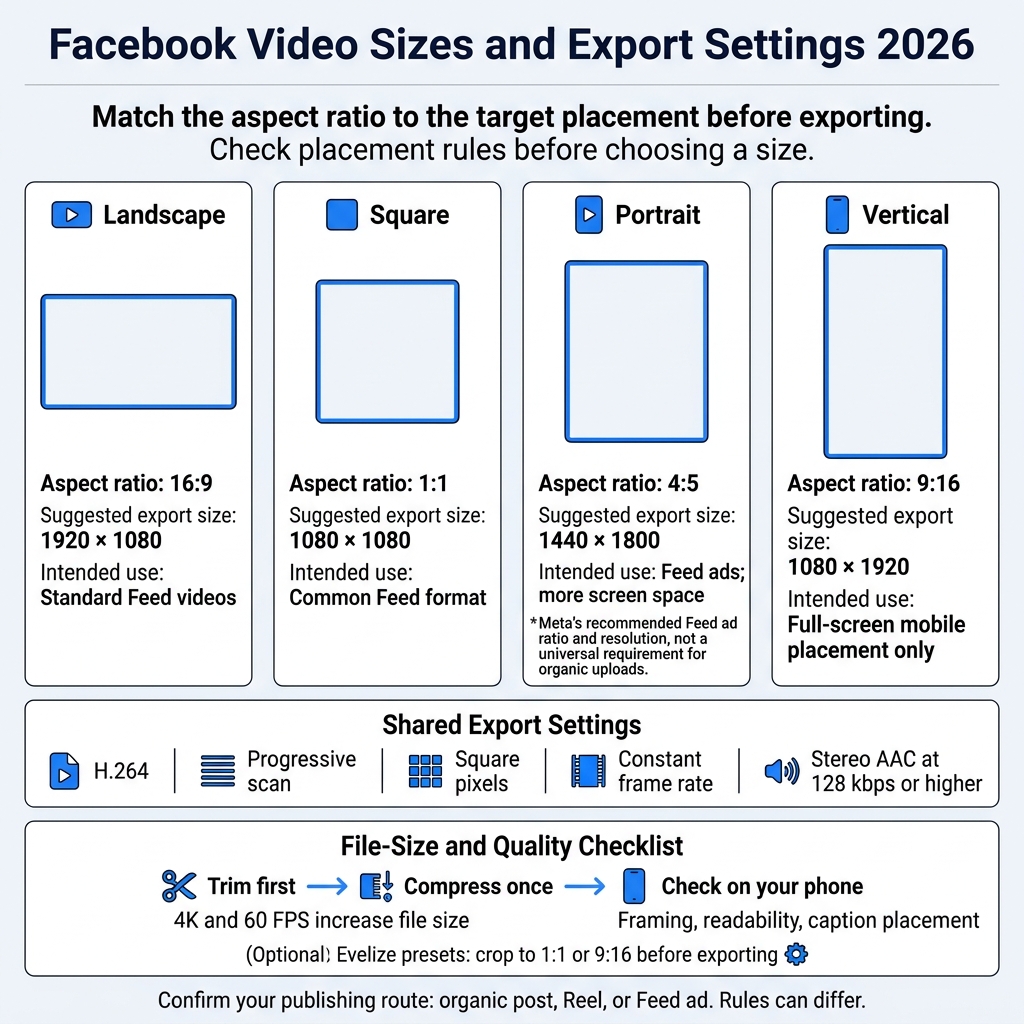
Match the aspect ratio to the target placement before exporting. Start with the sizes below, but check the placement rules before choosing one.
| Format | Aspect ratio | Suggested export size | Intended use |
|---|---|---|---|
| Landscape | 16:9 | 1920 × 1080 | Standard Feed videos. |
| Square | 1:1 | 1080 × 1080 | Common Feed format. |
| Portrait | 4:5 | 1440 × 1800 | Feed ads; more screen space. |
| Vertical | 9:16 | 1080 × 1920 | Full-screen mobile placement only. |
Use Evelize presets to crop to 1:1 or 9:16 before exporting.
Once you've set the dimensions, choose your file format and audio settings.
MP4 Settings and File-Size Checks
Export with H.264, progressive scan, square pixels, and a constant frame rate. For audio, use stereo AAC at 128 kbps or higher.
4K and 60 FPS increase file size. If the file needs to be smaller, trim it first, then compress it once. This helps keep captions and product details readable while staying within upload limits.
Check the exported file on your phone for framing, readability, and caption placement.
Prepare and Upload Facebook Videos on Your Phone
Choose Your Placement and Record With Evelize
With your export settings set, confirm where the video will appear in the feed and match your recording to the final upload format. Evelize supports landscape mode on iPhone and iPad. Rotate your device to suit the chosen aspect ratio.
Use Evelize to organize and search scripts, adjust scrolling speed, and set the font size and background color for easier filming. Place the teleprompter window near the camera lens, then record in the format you need for export.
Trim, Export, and Check Your Published Video
Before uploading, use the editor to choose your best take, trim extra footage, and crop with presets. Then export your video.
Check the published video for cropping, blur, audio sync, and color shifts. Make sure captions remain readable, and keep a master file so you can re-export if needed.
Compare Organic Feed Video and Feed Ad Requirements
Facebook Feed videos follow two publishing routes: organic posts and paid ads. Before exporting, confirm which route you’ll use. Refer to the Facebook Help Center for organic posts and Meta’s Facebook Feed video Ads Guide for paid posts.
| Specification | Organic video shown in Feed | Facebook Feed video ad |
|---|---|---|
| Publishing route | Use the organic publishing flow available to your account. | Follow Meta’s Facebook Feed video Ads Guide. |
| Aspect ratio and resolution | Varies by publishing route; check Facebook Help Center. | Recommended: 4:5 at 1440 × 1800 pixels. |
| Ad file types | - | MP4, MOV, or GIF, depending on the ad setup. |
| Frame rate | Varies by publishing route; check Facebook Help Center. | Check the current Ads Guide for the latest requirement. |
| Duration and file size | Varies by publishing route; check Facebook Help Center. | 1 second to 241 minutes; maximum 4 GB. |
| Key route check | Check whether the post is routed as a Reel. | Confirm the post meets the selected placement rules. |
Check your account’s publishing flow before export. An organic upload doesn’t guarantee Feed ad eligibility, so if you might promote the same video later, verify its ad eligibility before exporting.
Conclusion: Check Your Publishing Route Before Exporting
Before exporting, match your framing, dimensions, and duration to your publishing route. Then export only for that route. Keep a master file and create a separate Facebook-ready version. Evelize’s presets and trimming tools can help you prepare that version without overwriting the original.
After processing, check the framing, audio, and captions. Re-export if needed, and make sure the published file matches the route you planned.
FAQs
How can I tell if my upload will become a Reel?
For your upload to appear as a Reel, record or format it in 9:16 at 1080 × 1920 pixels, the standard vertical format for Facebook Reels [3]. Evelize’s social media presets can automatically crop your footage to these dimensions before you upload, helping it fill the screen without awkward framing or black bars [3][4][5].
Why does my video look blurry after uploading?
Videos often look blurry after upload because their settings don’t meet Facebook’s requirements. If the resolution, aspect ratio, or frame rate doesn’t match those standards, compression may lower the video’s quality. The wrong file format can also cause playback problems.
Before you upload, check your video’s resolution, codec, and frame rate against Facebook’s requirements. Play the exported video on several devices to check for compression artifacts or differences in how it looks.
Can I boost my video without reformatting it?
Before uploading, check that your video meets Facebook’s aspect ratio, resolution, and file structure requirements. If it does, there’s no need to reformat it. If not, you could end up with awkward framing, pixelation, or playback errors.
Evelize’s one-click social media presets automatically adjust your footage to the right aspect ratio and size for a professional look - without manual cropping.
Related Posts
Ready to Elevate Your Content?
Try Evelize for free and experience the easiest way to create, edit, and share professional videos. Script writing, teleprompter, and powerful video tools - all in one app!

