
Common Captioning Mistakes to Avoid
Common Captioning Mistakes to Avoid
Captions are critical for making videos accessible and engaging, but common mistakes can ruin the viewer experience. Here’s what you need to know:
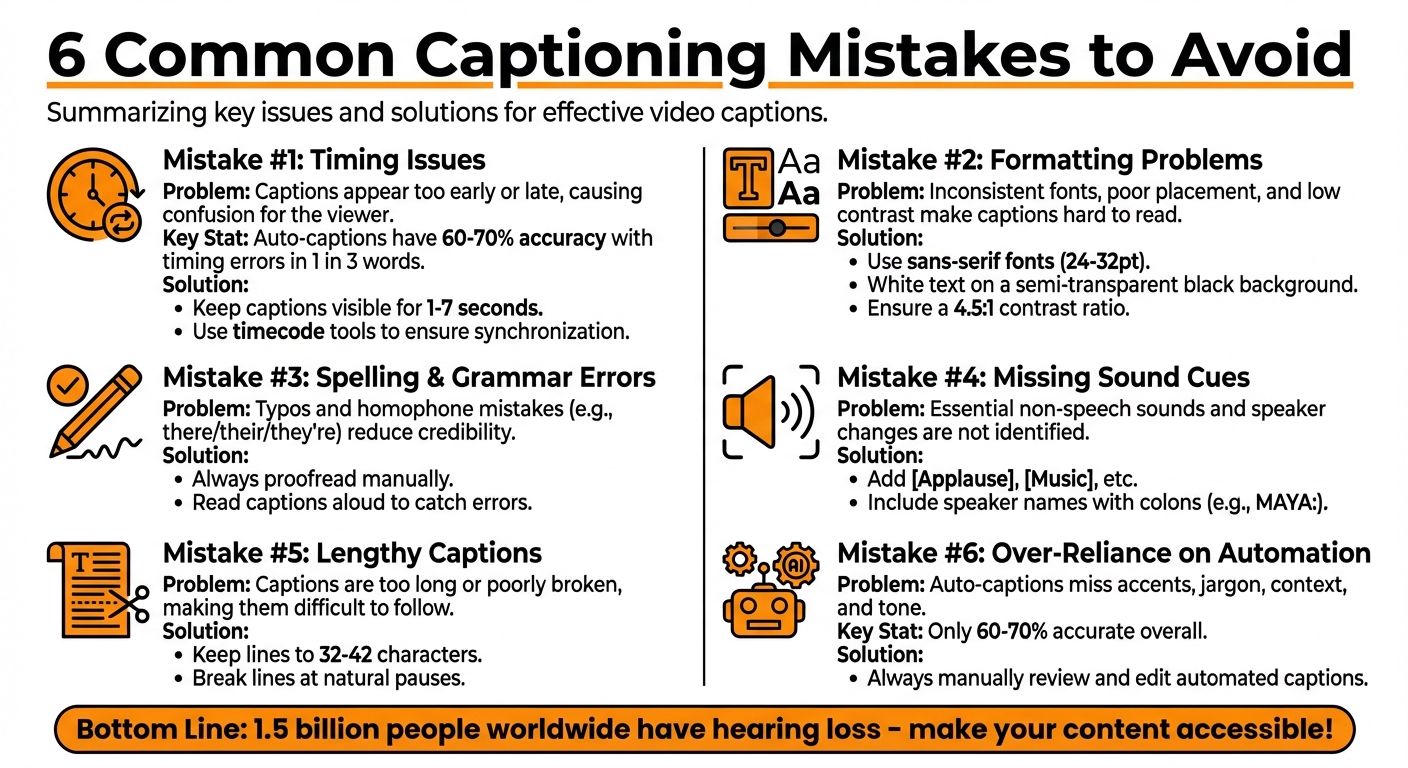
- Timing Issues: Misaligned captions frustrate viewers. Ensure captions sync with the audio and stay visible for 1–7 seconds.
- Formatting Problems: Inconsistent fonts, poor placement, and low contrast hurt readability. Stick to simple, high-contrast styles.
- Spelling & Grammar Errors: Typos and homophone mistakes damage credibility. Always proofread and edit captions manually.
- Missing Sound Cues: Include non-speech sounds (e.g., [Applause]) and speaker labels to provide full context.
- Lengthy Captions: Keep lines short (32–42 characters) and break them naturally to avoid overwhelming viewers.
- Over-Reliance on Automation: Auto-captions often misinterpret accents, jargon, and background noise. Always review and refine.
Key Takeaway: Well-crafted captions improve accessibility, retain viewers, and boost professionalism. Test your captions on multiple devices, edit carefully, and avoid relying solely on automated tools.
6 Common Captioning Mistakes and How to Fix Them
3 Greatest Caption Mistakes That are KILLING Your REELS!
1. Timing and Sync Problems
When captions don’t align with the audio, viewers are left juggling mismatched text and sound. This often leads to confusion and frustration, especially for deaf or hard-of-hearing audiences who depend on captions to follow along. The outcome? Many viewers simply disengage.
Mistimed captions force people to either read ahead - spoiling what’s coming - or scramble to catch up, disrupting the natural flow of your video. Both scenarios break immersion and lower retention rates.
The issue becomes even more noticeable in fast-paced content. YouTube's auto-generated captions, for instance, only reach 60-70% accuracy, and timing errors occur in about 1 in 3 words, particularly when speech speeds up or the audio quality dips. This is why manual review is critical - automated tools often struggle with keeping dialogue properly synced. Let’s explore some specific timing issues and how to address them.
1.1 Captions That Appear Too Early or Late
Captions that show up too early act as spoilers. Imagine watching a tutorial where the caption "Click the button now" pops up before the actual instruction. It ruins the sequence, making the experience feel clunky and out of sync.
On the other hand, captions that are too late create a different kind of chaos. In interviews or fast-moving scenes, delayed captions make conversations feel out of context. Viewers are left trying to piece together what was just said, often missing key points in the process.
The solution? Leverage timecode tools in professional captioning software to match text precisely with spoken dialogue. Before finalizing, preview your audio files to set accurate timestamps - skipping this step can lead to frustrating misalignment.
1.2 Captions That Struggle with Fast Speech
Fast-paced speech brings its own set of challenges. Quick dialogue can overwhelm captions, making them difficult to follow. Most people read at a pace of about 15-20 characters per second. If the speech moves faster, captions may lag, overlap, or flash too briefly, forcing viewers to focus on reading rather than watching.
To ensure readability, test the captions yourself at normal speed. If you find it hard to keep up, your audience will too. Adjust the display duration - aim for captions to stay visible for 1-7 seconds, depending on their length. Use editing tools to slow down how quickly captions appear, and then test again in a quiet setting to confirm everything flows smoothly. Regular checks like these help catch sync issues before your audience notices them.
2. Formatting Mistakes That Hurt Readability
Inconsistent formatting can distract viewers and make it harder to follow your content. When viewers constantly need to refocus due to erratic design choices, their reading speed slows, and their attention shifts away from the main action on screen.
Poorly placed captions are another common issue. For instance, if a caption covers a speaker's face during a critical moment or suddenly jumps from the bottom-center to the top-left, viewers are forced to search for the text instead of naturally absorbing the content.
2.1 Inconsistent Fonts, Sizes, and Colors
Switching fonts mid-video creates unnecessary clutter and disrupts the viewer's comprehension. Similarly, inconsistent text sizes can break the flow of reading, making it harder for viewers to stay engaged.
Color choices also play a big role. Bright colors might seem like a good idea, but they often fail contrast tests, especially against varied video backgrounds. Captioning expert Meryl Evans explains:
"Captions are meant to be plain", noting that even white text on a black background can sometimes be "too bright" for some viewers.
The solution? Keep it simple and consistent. Pick one sans-serif font, such as Arial or Helvetica, set the size between 24–32 points, and use white text on a semi-transparent black background. This combination ensures high contrast (at least a 4.5:1 ratio), making captions readable on any device. Tools like Evelize can help you lock in these settings, ensuring a polished and professional look without the hassle of manual adjustments.
Consistency in style is essential, but proper placement is equally important for clarity.
2.2 Bad Caption Placement
Captions that cover speakers or important visuals can disrupt the viewing experience by splitting the audience's attention.
Even if captions are well-formatted, they can still fail if they extend beyond safe screen margins. On mobile devices, for example, text that runs too close to the edges may get cut off, leaving viewers guessing at the missing words.
The fix? Stick to consistent placement. Keep captions in the bottom-center of the screen. Experts recommend limiting captions to 1–2 lines (about 32–42 characters per line) and positioning them within the lower 20% of the display. This avoids blocking key visuals while maintaining readability. If captions temporarily obscure important content, adjust their position as needed, but always return them to the bottom-center. Tools like Evelize offer features like customizable placement settings, 4K/60 FPS previews, and platform-specific presets to ensure captions display correctly across all devices and social media platforms.
3. Spelling and Grammar Errors
Getting the timing and formatting right is important, but clear language is equally crucial for keeping your audience engaged.
Typos and grammar mistakes in captions can make your video appear rushed or poorly executed. These errors can harm your credibility and make viewers question your professionalism. For businesses and brands, repeated caption mistakes can hurt your reputation, especially if competitors are using polished, error-free captions. This can create an unfavorable comparison in the eyes of your audience.
Mistakes in captions can also alter the meaning of your message. A single misspelled word can completely change the context - imagine "dose" versus "does" in a medical video. Similarly, punctuation errors can shift the tone, turning a supportive comment into sarcasm or a question into a directive. For deaf and hard-of-hearing viewers who rely on captions, these errors can cause confusion and lead to misunderstandings that go beyond minor annoyances.
3.1 Common Caption Errors
One of the most frequent issues is homophone errors - words that sound the same but have different meanings, like "there/their/they're", "your/you're", and "to/too/two." Automated caption tools rely solely on audio input, which makes them prone to these context-sensitive mistakes.
Another common problem involves misheard words or names, particularly for brands, product names, or proper nouns. Background noise, accents, or unclear speech can confuse automated systems, resulting in incorrect captions. Technical terms, industry jargon, and regional slang like "y'all" or "gonna" are also frequent trouble spots. These tools often misinterpret such words, leading to captions that can appear nonsensical or overly formal.
Grammar and punctuation errors further complicate matters. Missing sentence breaks can create long, unwieldy captions that are hard to follow. Failing to capitalize proper nouns or the start of sentences can confuse readers. Omitting question marks or exclamation points leaves the tone ambiguous, while misplaced commas can completely change the meaning of a sentence. For instance, "Let's eat, kids" versus "Let's eat kids" is a classic example of how punctuation can drastically alter interpretation.
3.2 How to Create Error-Free Captions
To minimize errors, start by preparing a well-written script. Tools like Evelize can help you draft and refine your content. By editing your script in advance, you can run spellcheck, correct awkward phrasing, and standardize terms such as product names or recurring phrases before they make it into your captions. This step ensures consistency and reduces the risk of repeated errors across your videos.
When reviewing captions, begin by proofreading the transcript in text-only mode using a caption editor. Look for spelling, grammar, and punctuation mistakes. Then, watch the video with captions enabled to ensure they sync well with the spoken content and flow naturally. A quick checklist for names, technical terms, and numbers can help you catch specific errors.
Finally, read your captions aloud. This can reveal awkward phrasing or missing words that might not be obvious otherwise. Even if the text is grammatically correct, it may not sound right in context. Taking these extra steps helps you catch errors that automated tools often miss, ensuring your captions are polished and effectively communicate your message.
sbb-itb-4a26d6a
4. Missing Sound Descriptions and Speaker Labels
Captions aren't just about getting the timing right or ensuring the text is error-free. They also need to include all auditory cues and clearly identify speakers to make content fully accessible.
When captions only display dialogue, they leave out important audio details. This can deprive deaf and hard-of-hearing viewers of essential context. Including these auditory elements adds depth to your videos and enhances their accessibility. Sounds like background music, sound effects, or audience reactions often carry emotional or narrative significance. Leaving them out can strip away vital layers of meaning.
Speaker labels are just as crucial. In videos with multiple voices - such as interviews, podcasts, or group discussions - viewers can't always tell who's talking. Without proper labels, dialogue can become confusing or misattributed.
4.1 Describing Non-Speech Sounds
According to U.S. accessibility standards and captioning best practices, describing non-speech sounds isn't optional - it’s essential. Sounds like music, alarms, door slams, or audience reactions provide context and set the tone. For example, labels like [Applause], [Door slams], or [Dramatic music builds] help convey the emotional and narrative cues that might otherwise be missed.
When describing these sounds, use specific and concise bracketed labels in the present tense. For instance, write [Soft piano music], [Phone ringing], [Crowd murmuring], or [Thunder rumbles]. Avoid generic terms like [Music], as they don’t provide enough detail. Only include ambient noises if they significantly impact the content's context.
4.2 Identifying Speakers
In videos with multiple participants, failing to label speakers can create unnecessary confusion. This is especially true during fast transitions, off-screen dialogue, or overlapping conversations. Proper speaker labels ensure viewers can easily follow who is speaking.
Each caption should start with a speaker label followed by a colon - for example, MAYA: I love this idea. Use short, consistent names like HOST, GUEST, or NARRATOR, and repeat the label every time the speaker changes. For off-screen voices, add context with brackets, such as [Voiceover]:.
To streamline this process, tag speaker names in your script before recording. Tools like Evelize allow you to pre-tag speaker names, making it easier to organize and search your content. For example, scripting a line as ALEX: That's incredible! [Audience applauds] lays the groundwork for creating precise and accessible captions.
5. Captions That Are Too Long or Poorly Broken
After tackling timing and formatting, let's dive into how caption length and line breaks can make or break the viewer's experience.
When captions drag on or span multiple lines, they shift the focus from watching to reading. As accessibility advocate Meryl Evans points out, longer caption lines mean more time spent reading and less time engaging with the video itself. Shorter lines, on the other hand, allow viewers to quickly scan the text and return their attention to the visuals. Overly long or poorly structured captions force viewers to choose between following the text and keeping up with the on-screen action. This creates challenges, especially for those who rely on captions as their main way to understand the content. Think of it this way: captions should support the video, not overshadow it.
5.1 Captions That Are Too Long
Keep captions concise - stick to one or two lines, with about 32 characters per line. For example, instead of cramming "Howdy, y'all! My name is Meryl Evans." into a single line, break it into two:
"Howdy, y'all!"
"My name is Meryl Evans."
This approach keeps the text easy to follow and natural. If you notice captions frequently spilling into three or more lines, it's a red flag that they need to be split and re-timed. Always preview captions at playback speed to ensure they’re clear and don’t overwhelm the viewer - this ties back to earlier advice about testing for readability.
5.2 Poor Line Breaks
Beyond keeping captions short, where you break the lines matters just as much.
Bad line breaks can disrupt the flow, making captions feel awkward or harder to read. Avoid splitting names, breaking sentences mid-thought, or combining non-speech sounds (like [Bell dings]) with dialogue on the same line. Instead, place breaks at natural pauses - after phrases, commas, or at the end of a sentence. For example, keep a full name like "Meryl Evans" on one line, and don’t break closely related words like "credit card" or "is going" across two lines.
If you're using auto-captioning tools or software like Evelize, don’t skip the manual review. Adjust the output to shorten long lines, remove transcript-style blocks, and fix awkward breaks. This extra effort takes captions from being mere text on a screen to something that's seamless and easy to read.
6. Relying Too Much on Auto-Generated Captions
When it comes to creating accurate and effective captions, leaning too heavily on automated systems can lead to serious issues.
Automated captioning tools generally hit only about 60–70% accuracy. That means roughly one out of every three words could be wrong, especially when dealing with accents, background noise, or technical vocabulary. Accessibility advocate Meryl Evans sums it up perfectly, calling them:
"autocraptions"
This term reflects the frequent and often embarrassing mistakes these systems produce. Publishing captions straight from automation without editing damages both your credibility and your inclusivity. For deaf and hard-of-hearing viewers, accurate captions are a necessity, not a luxury. Think of auto-generated captions as a rough draft - not the finished product.
6.1 Where Automation Misses the Mark
Automated captions often struggle with speech patterns that deviate from the norm. Accents can introduce subtle variations in pronunciation that the software fails to interpret correctly. Technical terms are another common stumbling block - for instance, "algorithm" might be transcribed as "al gore rhythm", or "metadata" could turn into "met a data". Background noise only adds to the confusion, making errors even more likely.
Homophones are another major challenge. Words like "espresso" might show up as "expresso", or "aspirin" could become "ass pirin", leading to awkward or even misleading captions. A 2020 Stanford study found that YouTube's auto-captions had significantly higher error rates for speakers of African American Vernacular English compared to white speakers, exposing biases in these systems.
6.2 Combining Automation with Manual Editing
Automated captions are a helpful starting point, but they need thorough manual editing to meet professional standards. Review every line, correct misheard words, fix punctuation and capitalization, and include essential non-speech cues like [laughter] or [music], which automated tools often miss.
Using high-quality audio and video can also make editing easier. Tools like Evelize, which support 4K, 60 FPS, and HDR, can improve speech recognition accuracy. However, even with high-quality input, manual review is critical to ensure captions are clear, accurate, and properly timed. By carefully editing these drafts, you maintain the professionalism and accessibility your audience deserves.
Conclusion
Captions play a crucial role in keeping viewers engaged and making content accessible to everyone. High-quality captions avoid common pitfalls like poor timing, inconsistent formatting, language mistakes, missing audio cues, overly long lines, or unedited auto-generated errors. These issues can disrupt the viewing experience, particularly for the 1.5 billion people worldwide with hearing loss and the many social media users who watch videos without sound.
To create effective captions, ensure they are perfectly synced, use a clear and consistent high-contrast style, and are thoroughly proofread. Include [sound effects] and speaker labels, break lines naturally (keeping them under 32–42 characters per line), and always manually review auto-generated captions before publishing. Following these guidelines ensures your captions enhance your content rather than detract from it.
It’s also essential to test captions on a variety of devices - like phones, tablets, laptops, and TVs. This helps identify issues like cut-off text, poor contrast, or syncing problems that might only appear on certain screens. Without this step, captions that look fine on a desktop might end up unreadable on a mobile device, where most users consume content.
To simplify the process, tools like Evelize can be a game-changer. They allow you to craft professional scripts, record polished videos, and export platform-ready content. Starting with a well-written script minimizes improvisation errors, making caption editing much easier.
FAQs
What’s the best way to keep captions in sync with video audio?
To keep your captions aligned with your video’s audio, tweak the teleprompter’s scrolling speed to match how fast you’re speaking. Before finalizing, preview your recording to check the timing and make any needed adjustments. Tools that offer fine control and playback options can make this process smoother, ensuring your captions sync flawlessly and improve the overall quality of your video.
What are some tips for creating easy-to-read captions?
To improve caption readability, keep each line brief - aim for 2–3 words per line. Break up longer sentences into smaller chunks to prevent visual clutter. Choose a clear, easy-to-read font, and make sure the text contrasts sharply with the background for better visibility. Captions should align perfectly with the audio and avoid overloading viewers with excessive information. Focusing on simplicity and clarity will make the experience much smoother for your audience.
Why should you manually review captions even after using automated tools?
Automated captioning tools are great for saving time, but they’re not perfect. They can misinterpret speech, mess up punctuation, or get the timing wrong. These kinds of mistakes can confuse your audience or make your video feel less polished.
Taking the time to manually review and edit captions helps ensure they’re spot-on. This means they’ll align perfectly with the video, be easy to follow, and convey your message clearly - especially when dealing with complex topics or critical points where precision matters most.
Related Posts
Ready to Elevate Your Content?
Try Evelize for free and experience the easiest way to create, edit, and share professional videos. Script writing, teleprompter, and powerful video tools - all in one app!


